

Key Points to Know Before Starting This Tutorial
WPDistrib allows you to quickly create an optimized WordPress site, but to achieve a professional look, it’s essential to structure your pages correctly.
This tutorial walks you through the necessary steps to design an attractive page using Spectra, a tool integrated into WPDistrib, without requiring advanced design skills.
With this guide, you will learn how to:
- Create a new page in WordPress.
- Select and apply a suitable design template.
- Customize your page for a unique and professional result.
Context and Basic Concepts
Creating a web page requires proper structuring to ensure an aesthetically pleasing layout and intuitive navigation for visitors. WordPress, combined with WPDistrib, simplifies this process by integrating tools like Spectra, an advanced block editor for building dynamic and modern layouts.
To get started efficiently, it’s important to understand the following elements:
- WordPress Pages: These are the static sections of your site (Home, Services, Contact, etc.).
- Spectra Blocks: These allow you to easily add visual and interactive content to your page.
- Gutenberg Page Editor: The workspace where you will add and organize your content.
Prerequisites
Before starting, make sure you have:
- A functional WordPress site with WPDistrib installed.
- The Spectra plugin activated (it is included by default in WPDistrib).
- Access to the WordPress admin panel.
If Spectra is not activated, you can enable it by navigating to Plugins > Installed Plugins and clicking “Activate” under Spectra.
The Main Steps
1️⃣ Create a New Page
Click to explore the tutorial details.
🎯 In this step, you will create a new page for your WordPress site. This page, which we will name Homepage, will serve as a base for adding content and visual elements.
Access the Dashboard → Log in to WordPress and navigate to the dashboard.
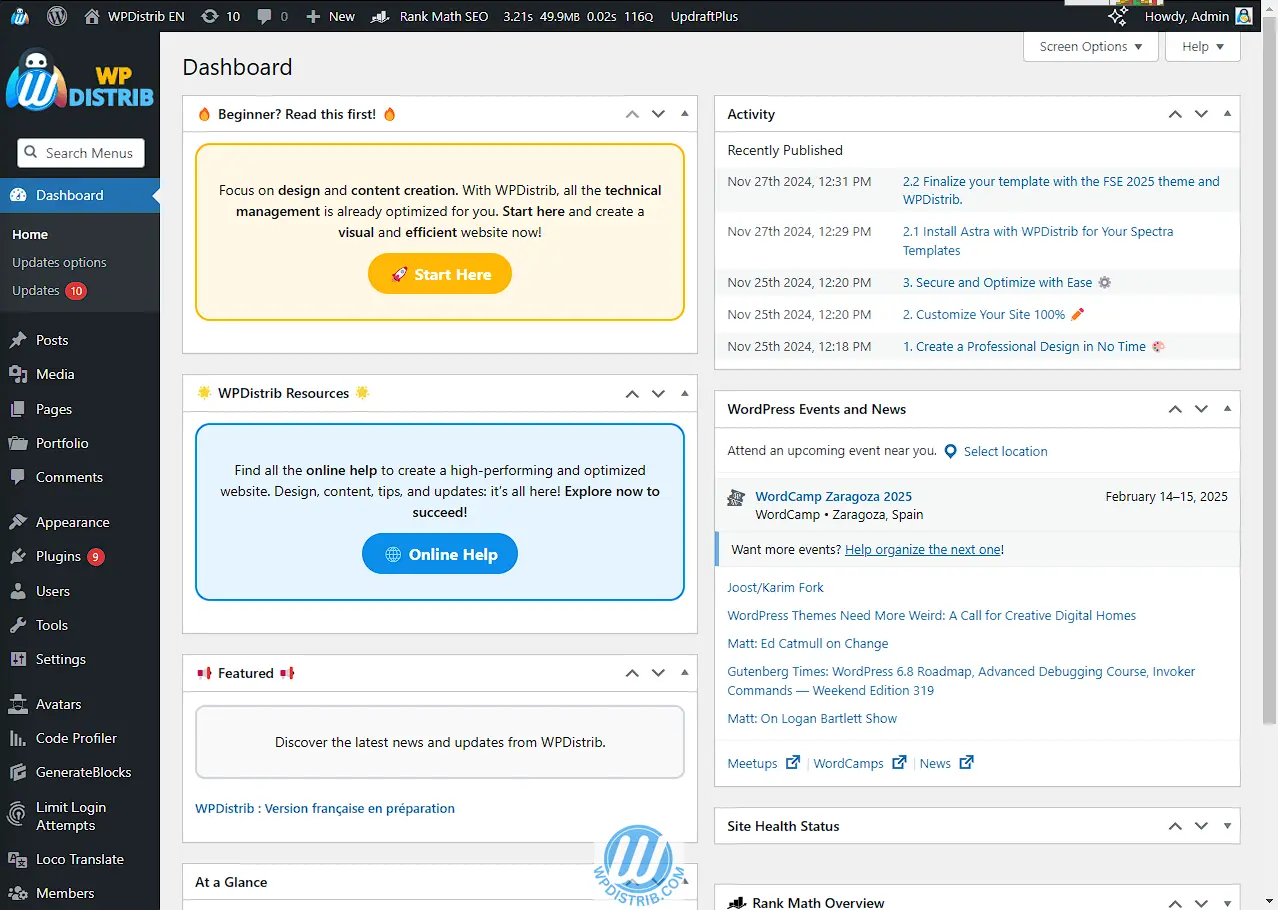
🪝 Admin Menu (on the left) → Pages > Add New Page


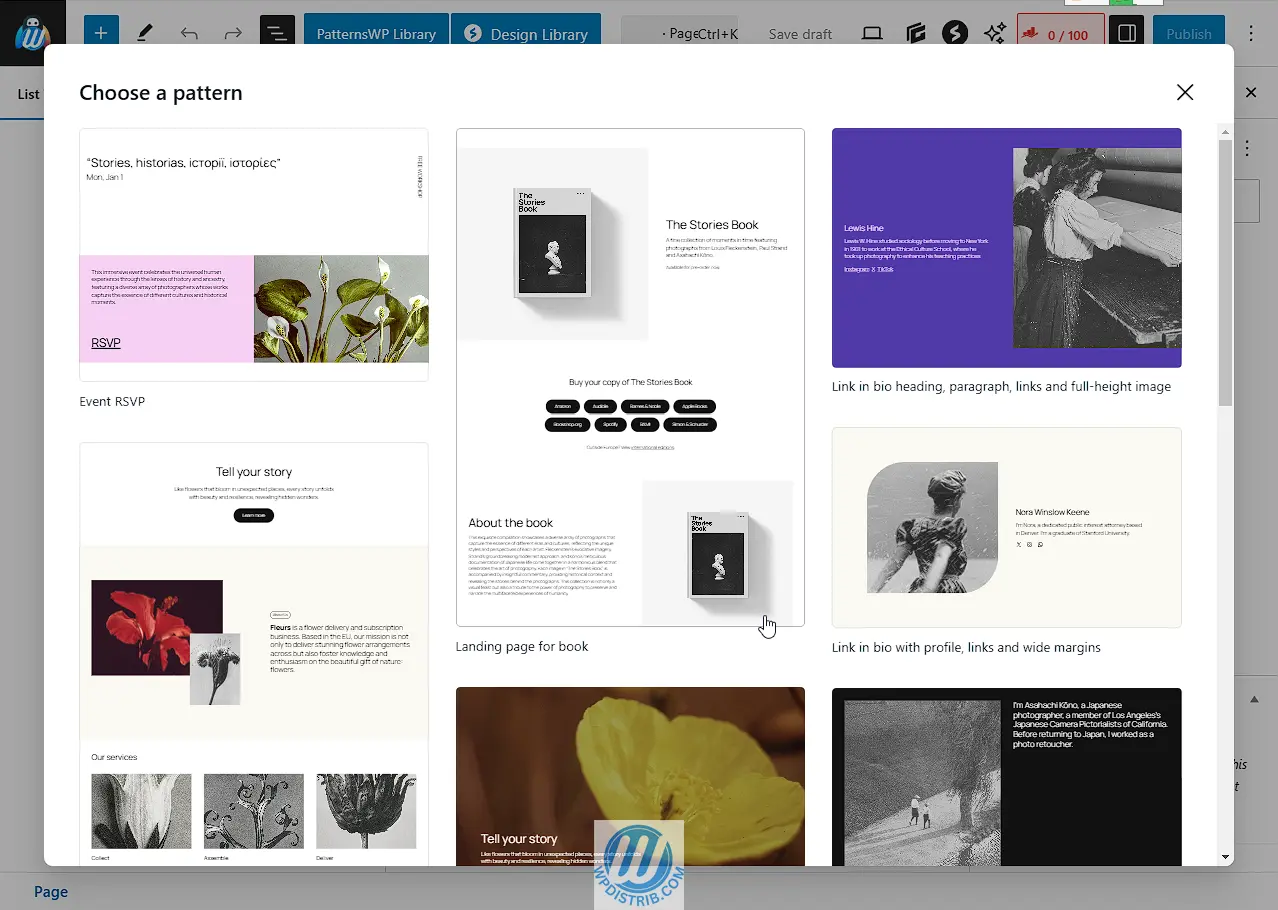
Gutenberg Suggestions Window:
When creating a page for the first time, a window with ready-made layouts appears. This is not the focus of this tutorial, so close it by clicking the “X” at the top right.
🪝 Here is the Gutenberg Editor
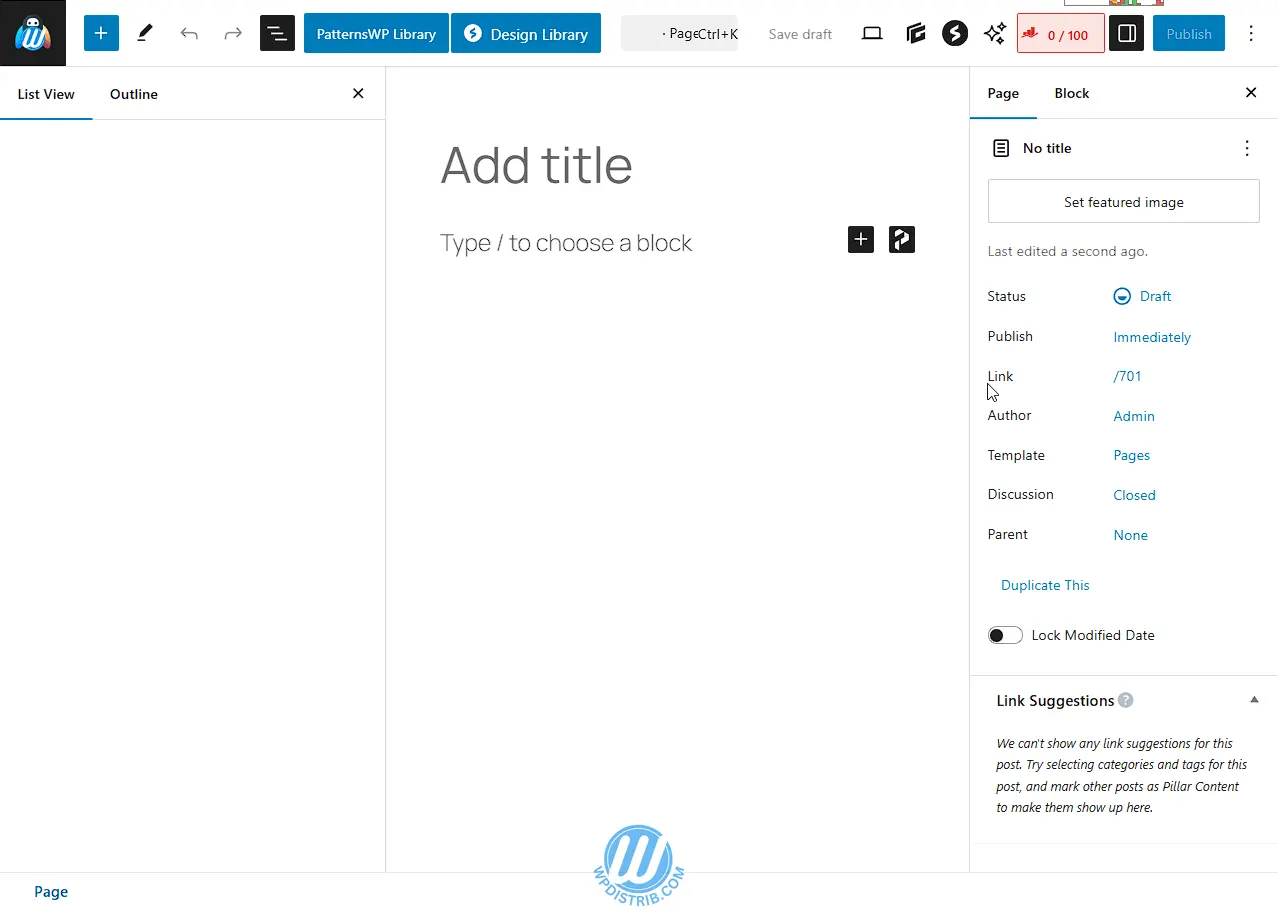
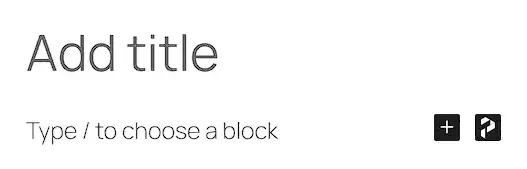
Enter Homepage in place of “Enter title”.
2️⃣ Select and Apply a Design
Click to explore the tutorial details.
🎯 In this step, you will choose a pre-designed template using the Spectra plugin, included in WPDistrib. These templates allow you to quickly start with a professional layout. You will select the template that best fits your needs and apply it to the Homepage created earlier.
🪝 Top Menu (Gutenberg Editor):

In the top menu of the Gutenberg editor, click on Design Library.
Note: This menu is available thanks to the Spectra plugin installation.

Design Library Window:
A window will open, displaying the Design Library.
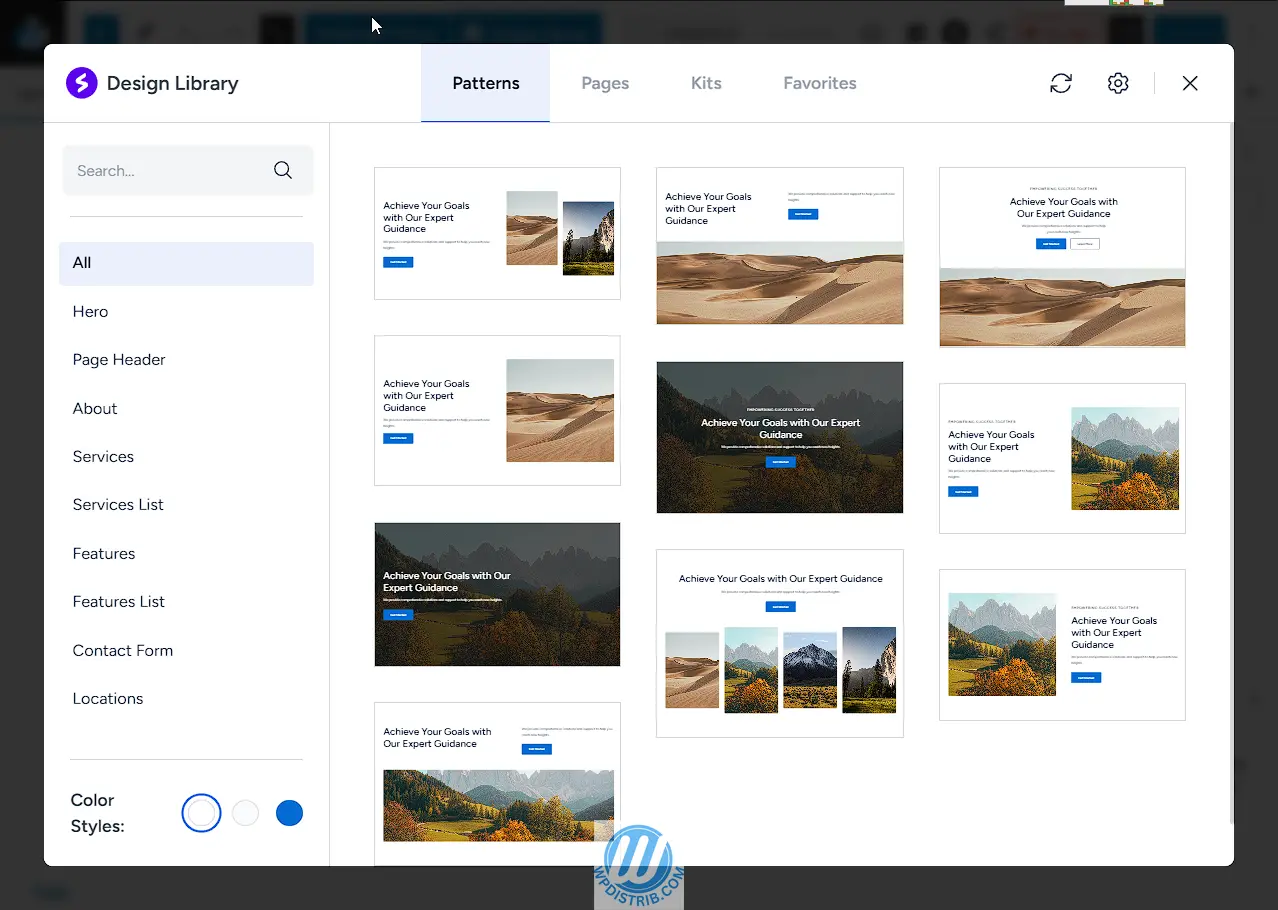
A window will open, displaying the Design Library.

Browse the Available Templates
- Tip: These templates are limited in number, making it easier for beginners to start quickly with a well-structured page.
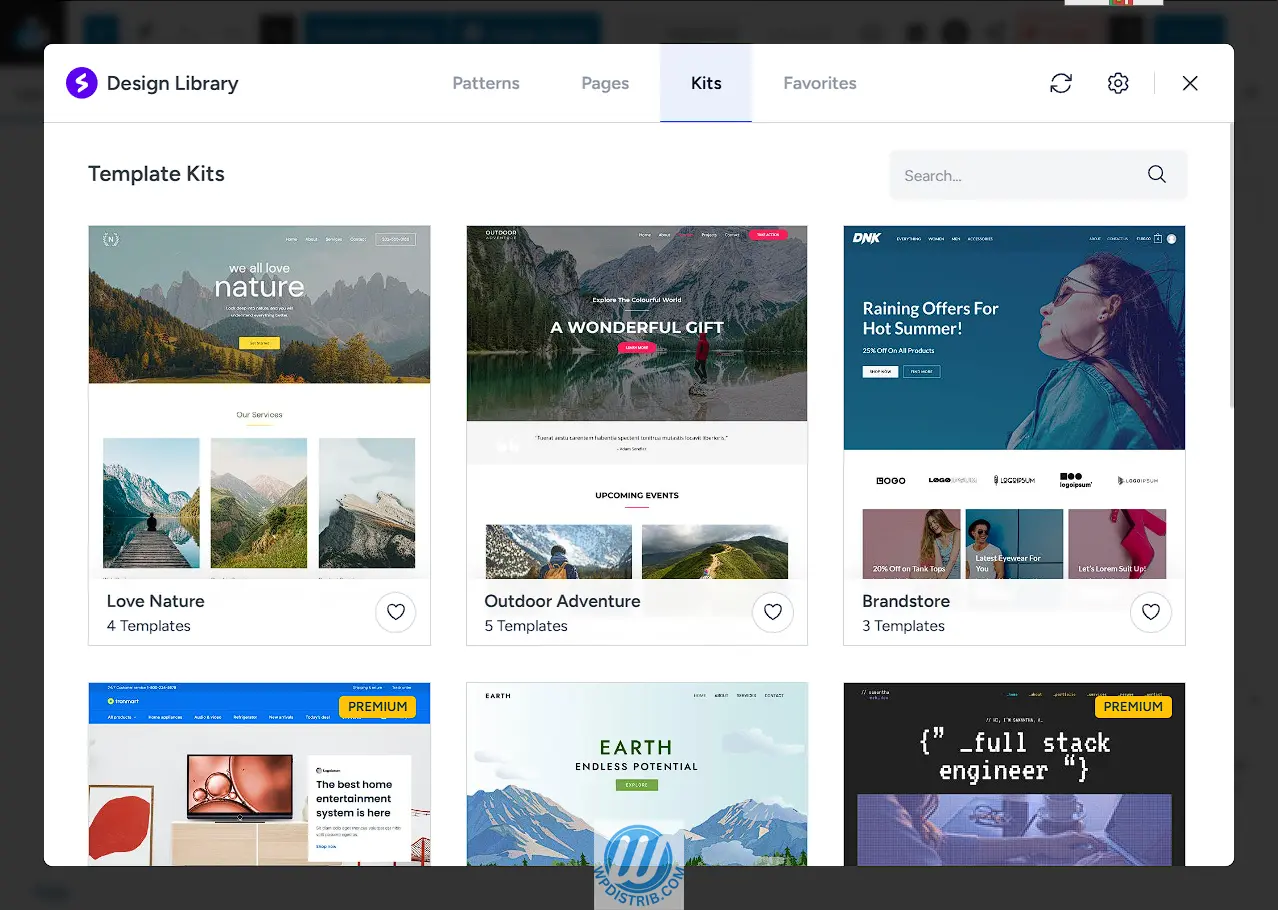
Selecting a Spectra Template
Scroll through the available templates to find one that suits your needs.
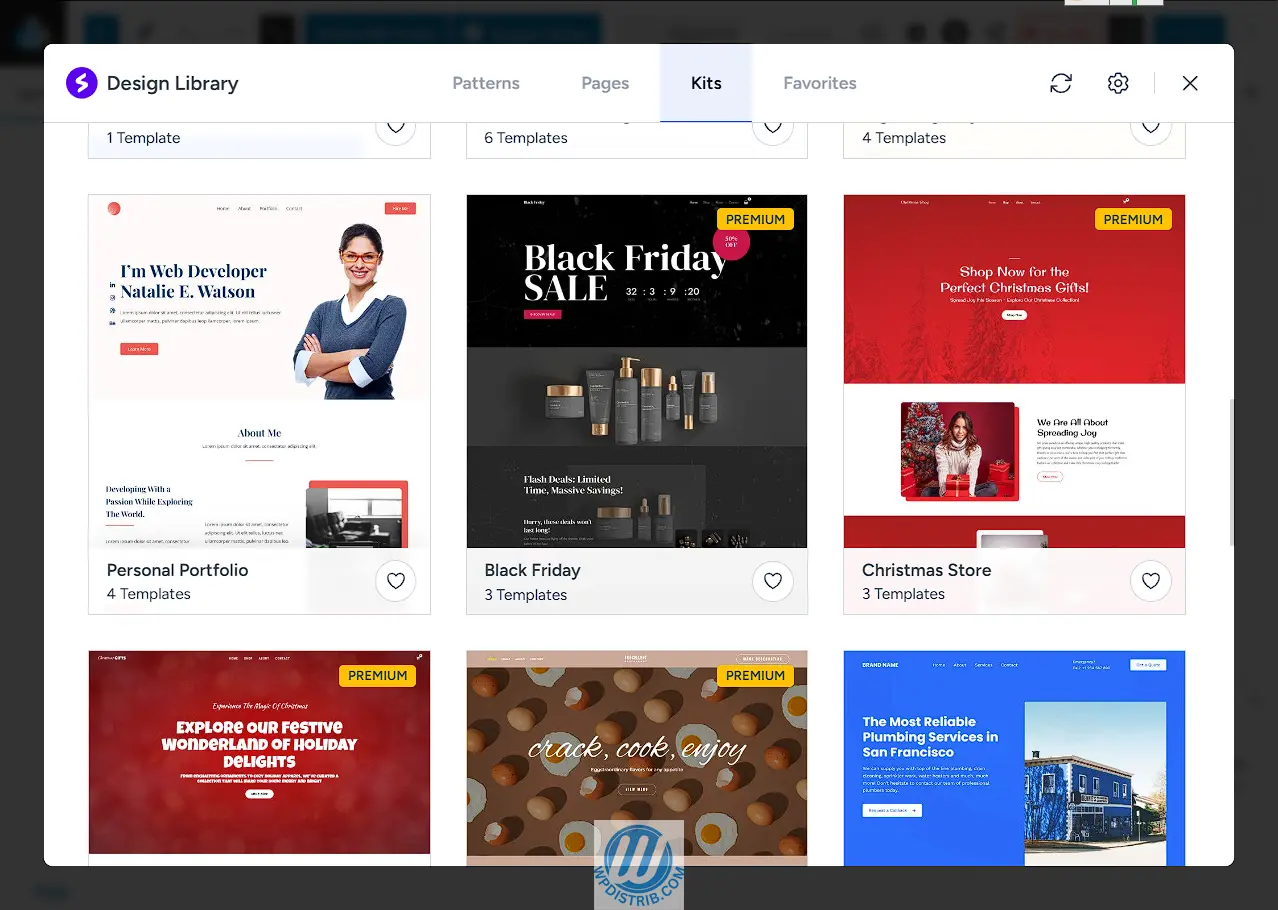
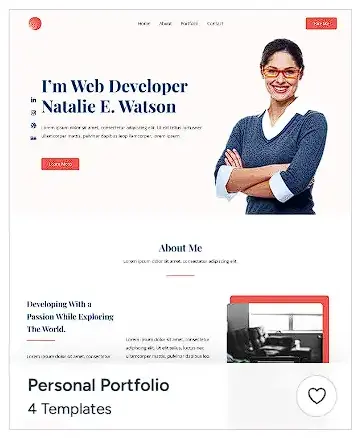
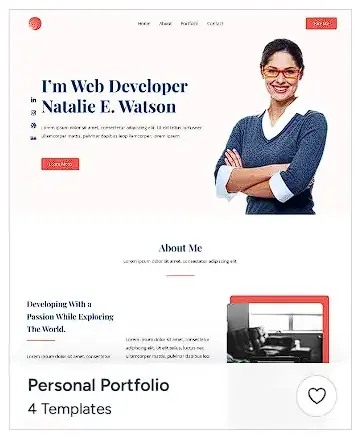
Example: The Personal Portfolio template is a great option.
⚠️ Warning: Templates marked Premium require a paid version of Spectra. Choose a template without this label to continue for free.

Choosing a Template
Select a template that is not marked as Premium.
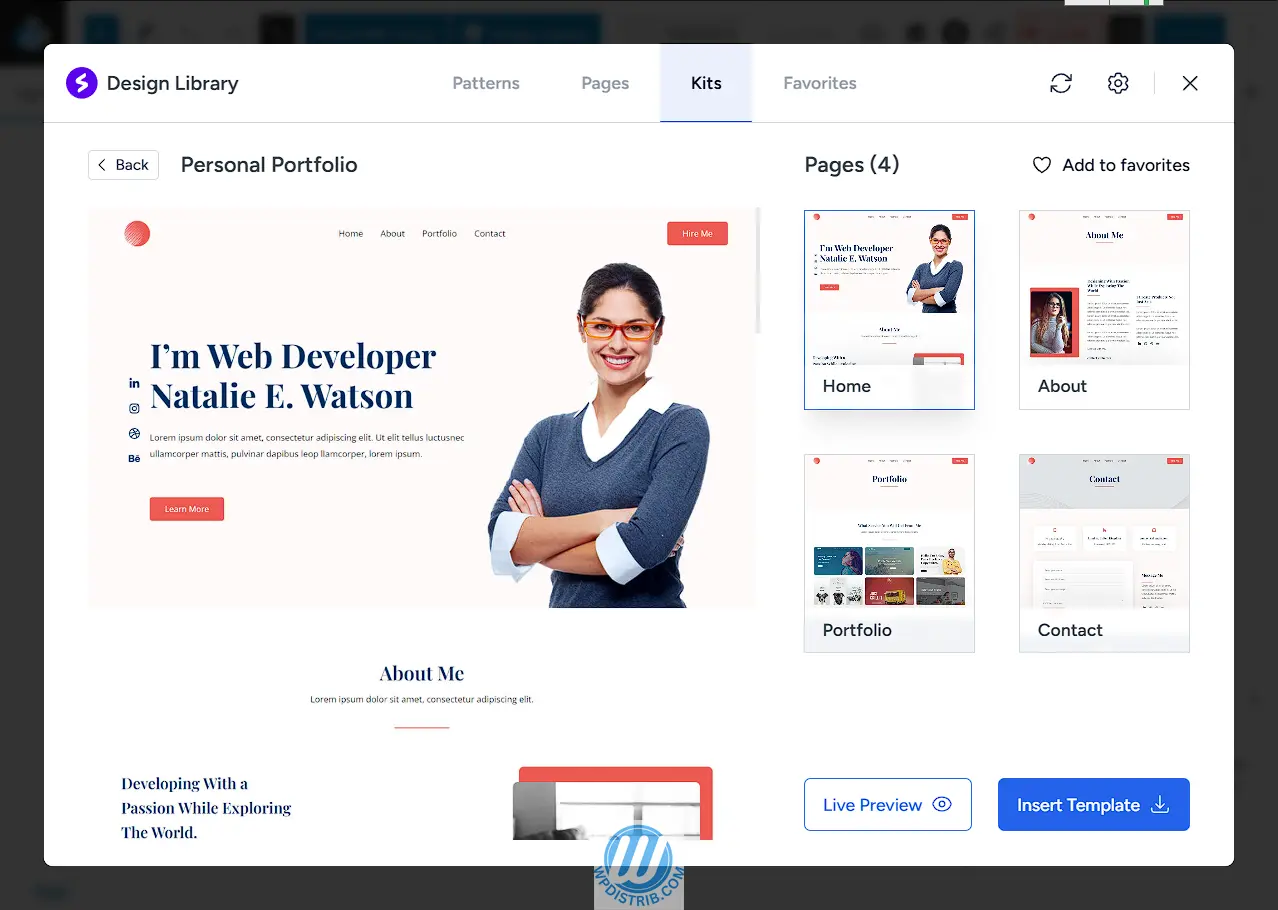
Live Preview
At the bottom right, click on Live Preview to see how the template looks on your page.
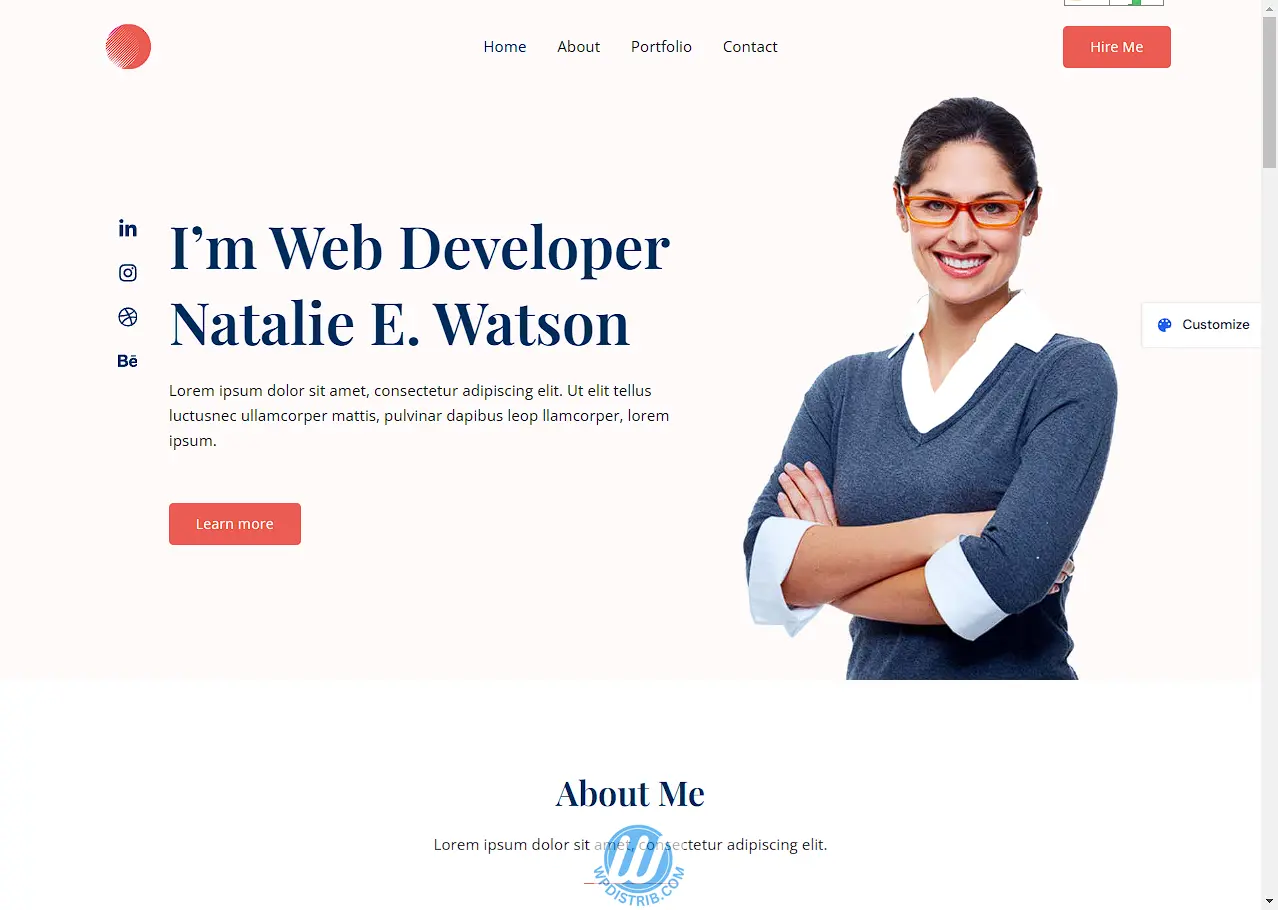
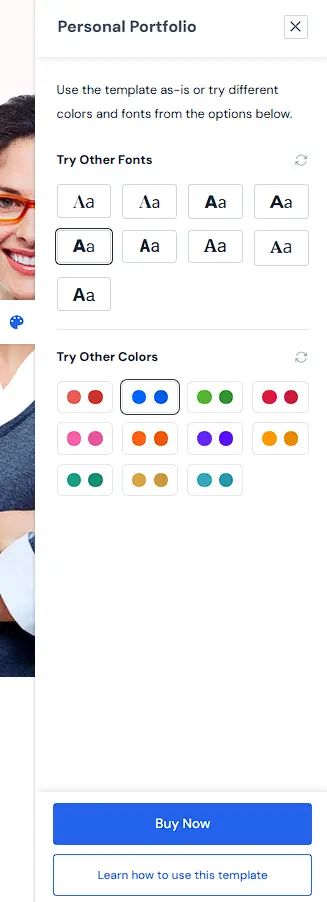
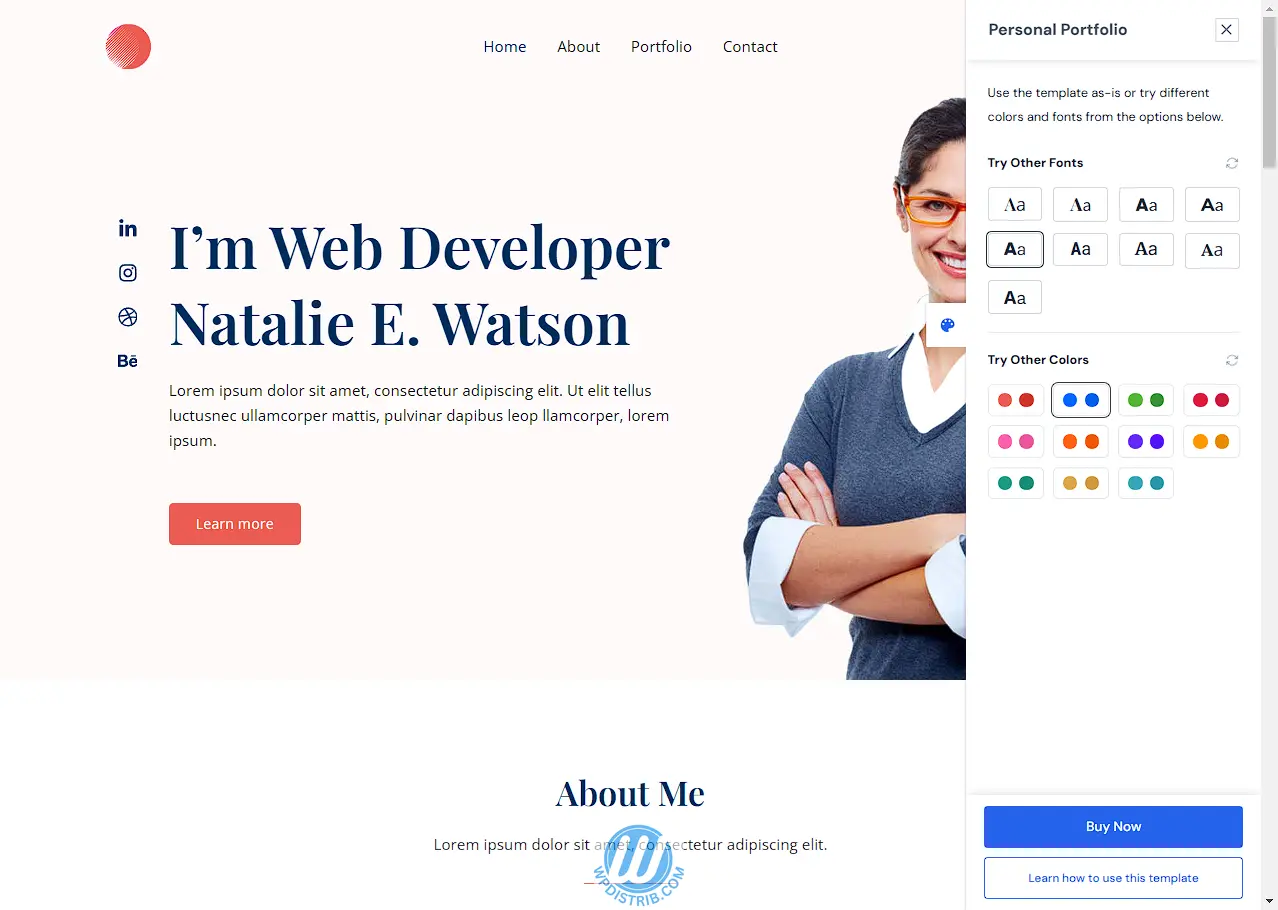
Note : The Customize option is available but requires the paid version of Spectra. Skip this step.

Template Insertion
Once you are satisfied with the template, click Insert Template.

Wait a few moments for Spectra to load the content.

The selected template will now appear in the Gutenberg editor, at the center of the page.
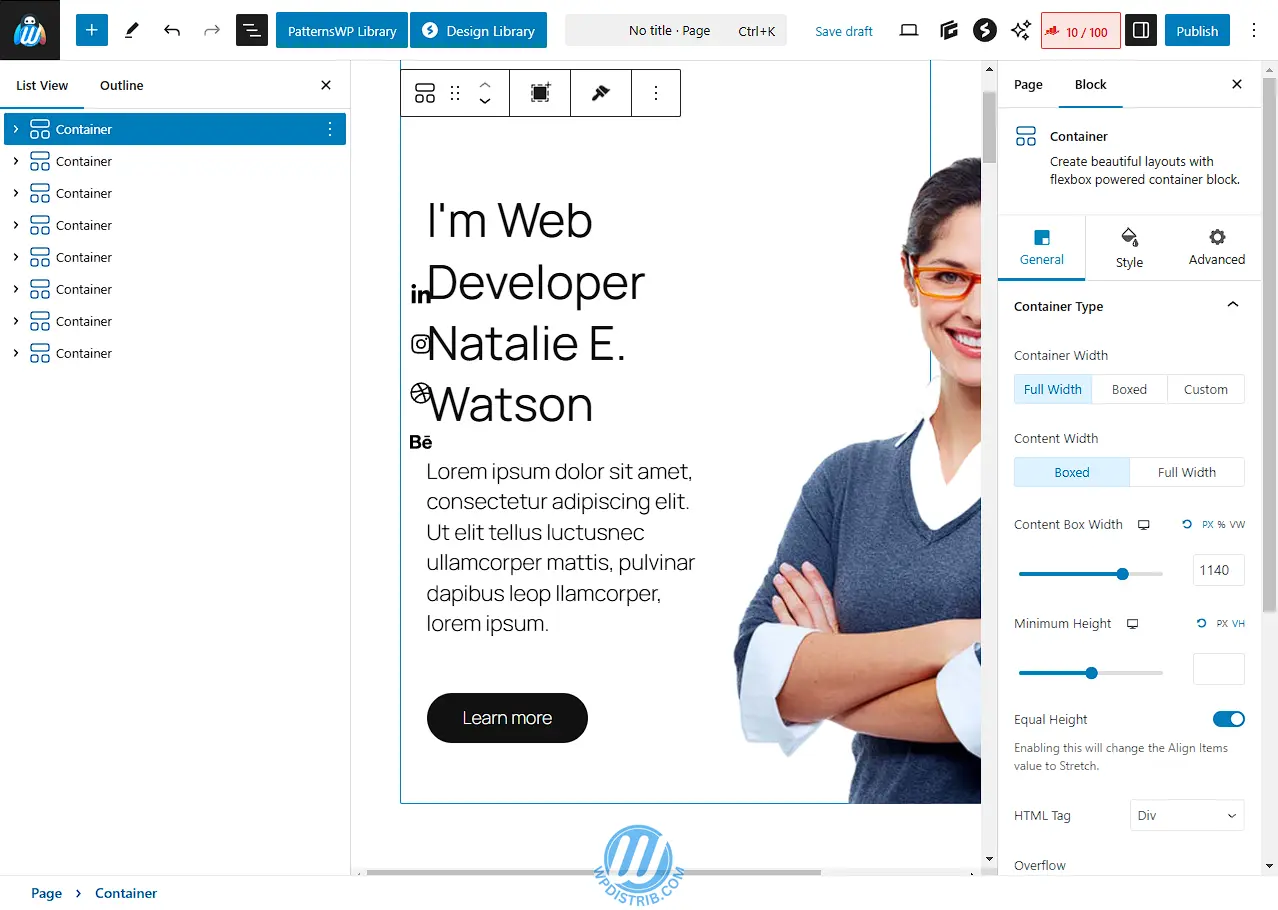
Preview the Result
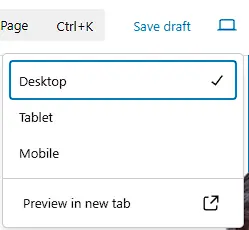
In the Gutenberg editor top menu, click on the computer screen icon.

Select Preview in a new tab.
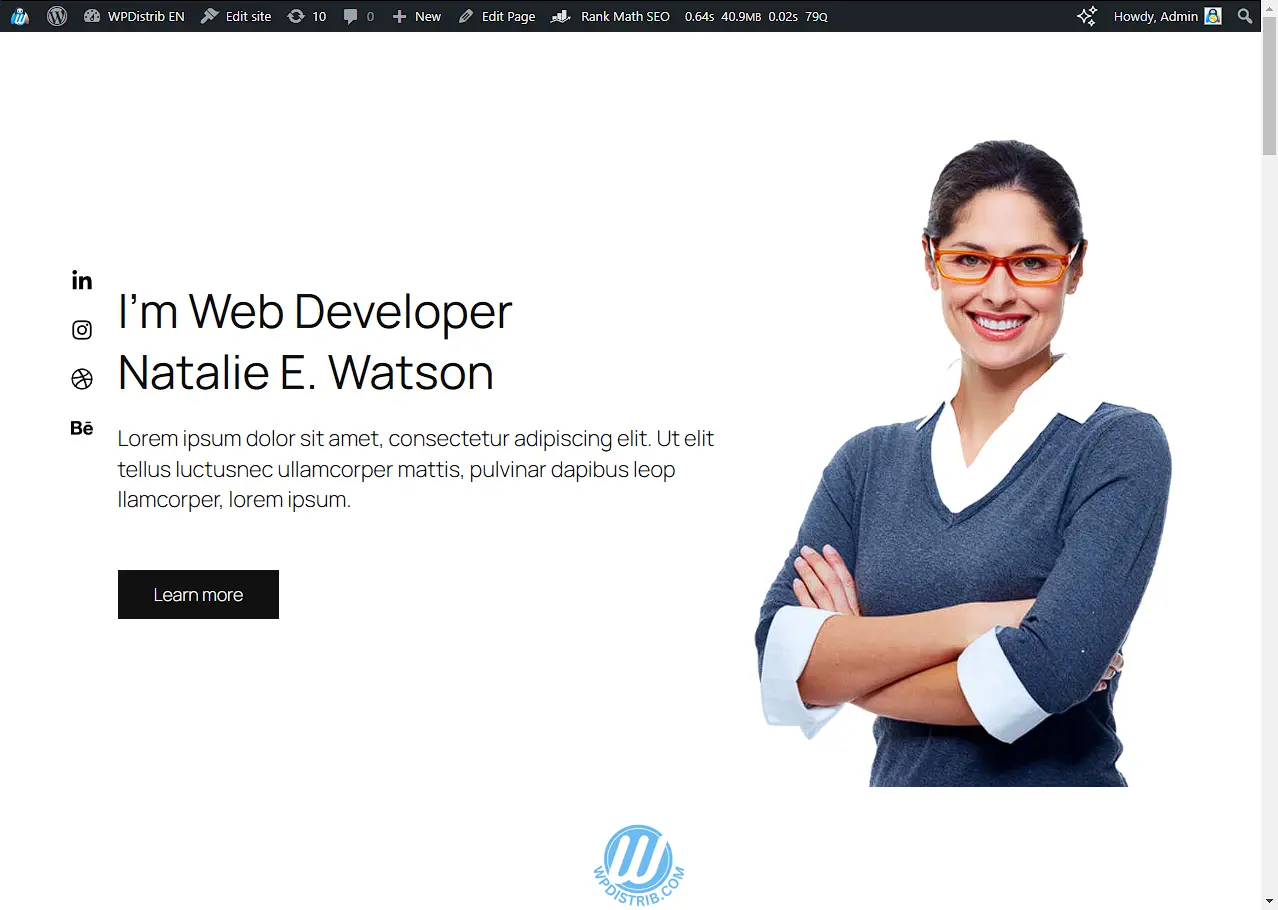
A new tab will open, displaying your page’s result.
Note: Some styles, such as colors, may not match the template perfectly yet. These adjustments will be covered later in the tutorial.
Return to the Gutenberg Editor
To go back to the editor, you can:
- Close the preview tab.
- Or, in the admin bar visible on the preview page, click
Edit Page.
3️⃣ Customize the Page
Click to explore the tutorial details.
🎯 In this final step, you will learn how to modify the content of the inserted template on your page. You will start by editing the text, previewing the result, and then publishing the page to make your content accessible to everyone.
Edit Text Blocks
Main Title: Click on the main title at the center of the page.
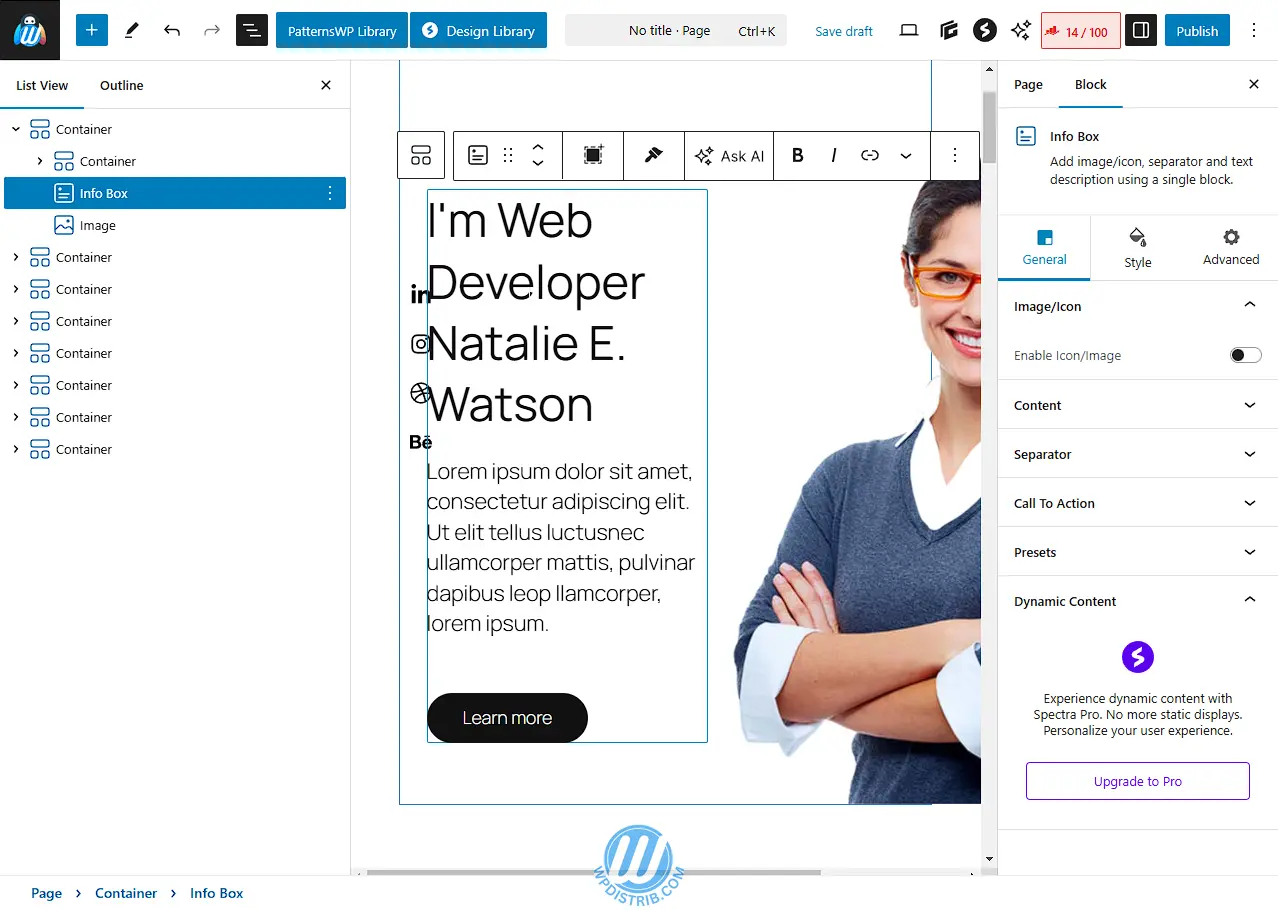
In the left sidebar of the Gutenberg editor, you will see a block named Infobox.
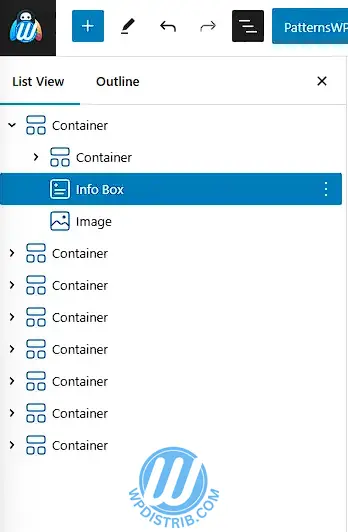
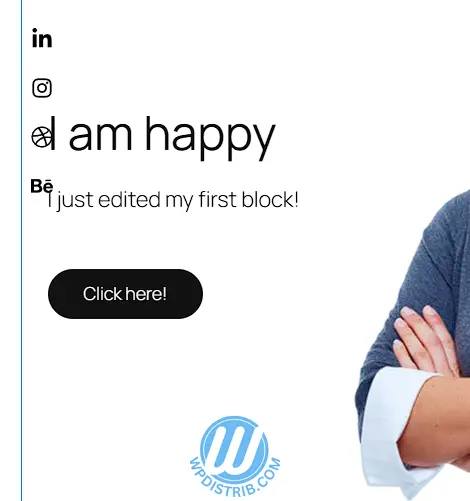
Double-click on the current text (I’m web developer Nathalie Watson) and replace it with I am happy or I am excited.
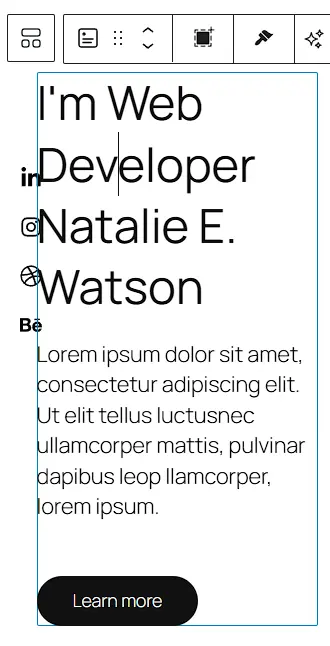
Text (Infobox): Double-click on the placeholder Latin text in the block and replace it with I just edited my first block!
Button: Click on the button below the text. This block is displayed as Button in the sidebar. Double-click on the current text and replace it with Click here!.
Save Your Changes
In the top menu bar, click on Save Draft to store your progress.

Preview the Page
Click on the computer screen icon in the top menu bar.
Select Preview in a new tab.
A new tab will open, displaying your changes.
Close the tab to return to the Gutenberg editor.
Publish the Page
In the top menu bar, click Publish.
A confirmation window will appear. Click Publish again to make the page public.
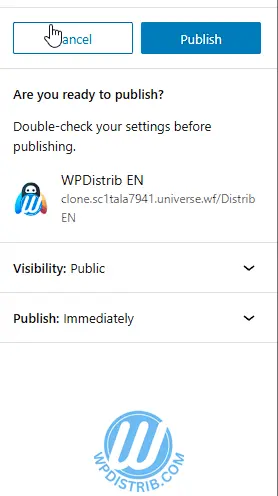
Note: Publishing a page means it will be visible to all visitors on your website.
Publishing and Post-Publication Options
Once the page is published, a notification appears in the right sidebar of the Gutenberg editor, indicating that the Homepage is now live.
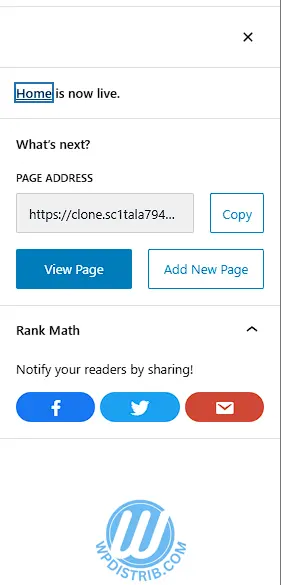
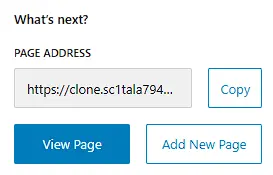
Here are your next steps:
View the Page: Click this option to open and preview your published page directly in your browser.
Add a New Page: Restart the process to create another page using a different template.
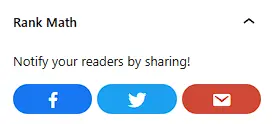
Share the Page: With the RankMath plugin, you can: copy the link to your page, share it directly on social media (Twitter, Facebook), send it via email.
Key Takeaways Before Moving Forward
Skills Developed:
In this introductory tutorial, you have learned how to:
- Create a new page in WordPress.
- Select and apply a design using the Spectra plugin.
- Customize text in different blocks of a page.
- Preview changes to check the final appearance.
- Publish a page, making your content publicly visible.
You may have noticed that some styles, like colors, do not perfectly match the original template yet. This is normal and will be addressed in the next step.
Going Further:
Before moving on, you might want to:
- Create additional pages by repeating the previous steps.
- Refine the content on your current page to align it with your goals.
- Experiment with the Gutenberg editor to explore its features.
- Try adding animations, visual effects, or new blocks to better understand Spectra’s capabilities.
Common Issues and Solutions
Here are some frequent problems and how to solve them:
- The template does not display correctly after import: Ensure that Spectra is activated and that the template was applied to the correct page.
- Changes are not visible online: Make sure to save and publish your updates. You may also need to clear your browser cache.
- The template style does not exactly match the preview:This is expected. In the next step, you will learn why and how to fix this. You will have two options:
- Recreate the template exactly: A simple method to achieve an identical look.
- Fully customize the design: A more flexible approach requiring additional learning.
Next Step: Customize Your Site 100%
In the next tutorial, you will dive deeper into site customization:
- Modify colors, fonts, and global styles.
- Adjust settings to make the design unique.
- Manage graphic elements for a fully personalized site.
Let’s move forward and take your WordPress site to the next level with WPDistrib! 🚀