


Cleaning up 404 errors on a WordPress site is one of the basic best practices for maintaining a clean technical foundation. Even if the WPDistrib site receives little traffic today (June 2025), it is essential to correct these ghost URLs, especially if they accumulate through successive restructurings. This article explains how to identify 404 pages via Google Search Console and remove them properly using the RankMath plugin, opting for a 410 redirect.
Understanding Why Pages Return a 404 Error
When a WordPress page is deleted, renamed, or modified without redirection, its original URL often remains stored by Google. The indexing robot (“Googlebot”) continues to visit it. If the server no longer finds it, it returns an HTTP 404 code, meaning “Not Found.”
The most common causes include:
🔁 Slug change: an article or category has been renamed, which modifies its permalink.
🧹 Content cleanup: old pages or images were intentionally deleted without redirection.
💥 Typo or broken link: some slugs may have been incorrectly formatted or auto-generated.
These errors are inevitable in the long run, but it’s important to identify and fix them to keep the site coherent.
Exploring 404 Errors with Google Search Console
Google Search Console is a free tool provided by Google to monitor the health of a website. It notably helps identify 404 error pages.
If RankMath is installed (as on WPDistrib), follow these steps:
👉 Go to RankMath > General Settings > Webmaster Tools.
👉 Find the Google Search Console section: a link is provided to access the official setup guide.
👉 Follow the instructions: sign in with a Google account (e.g., Gmail) , create a Search Console property, and choose the HTML tag verification method.
👉 Copy the verification tag provided by Google and paste it in the appropriate field in RankMath.
👉 Return to Search Console and click on Verify Property.
Once this step is completed, the site is connected to Google Search Console. It is then recommended to add a sitemap:
👉 Check that the “Sitemap” option is enabled in the RankMath dashboard.
👉 Go to RankMath > Sitemap Settings and note the generated URL (often: your-domain.tld/sitemap_index.xml).
👉 In Google Search Console, add this URL in the Sitemaps section.
Thanks to this connection, Google will start crawling your site and provide useful data, especially about detected 404 errors. Be patient—Google may take several days to scan your site!
Choosing Between 301 Redirect and 410 Deletion
Before deciding how to handle 404 errors, you must first detect them. Here’s how:
👉 Log in to Google Search Console for your site.
👉 In the left menu, click on Indexing > Pages.
👉 Scroll to the bottom to see the section Why pages aren’t indexed.
👉 Click on the reason Not Found (404) .
👉 You’ll then see the list of URLs Google considers missing.
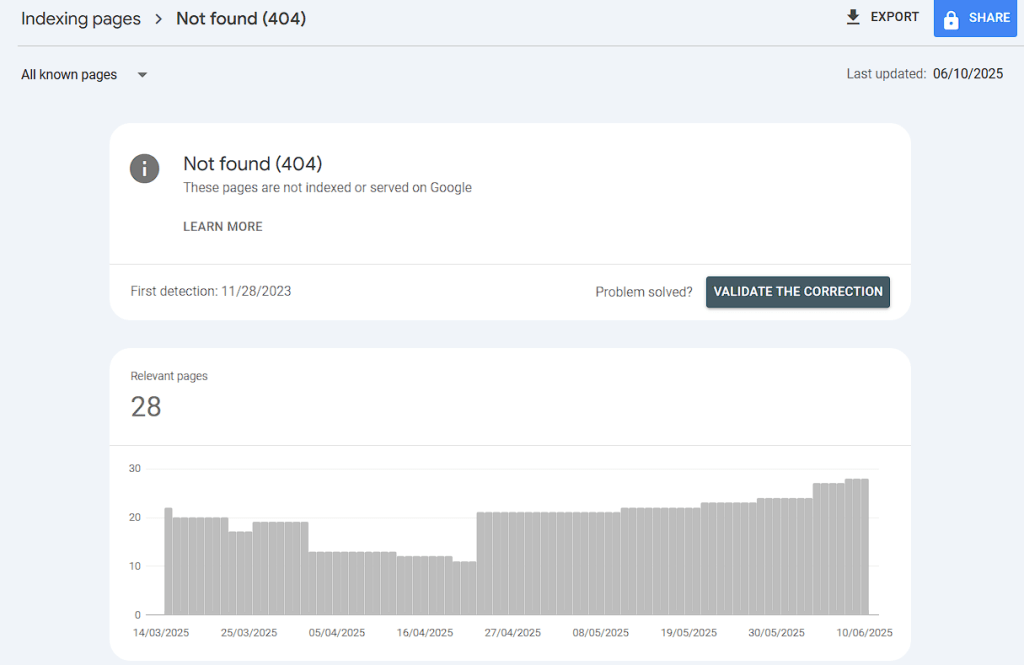
From that list, two options are available depending on the case:
🔁 301 Redirect: use this if another relevant page can replace the deleted one. It helps preserve SEO or external links.
🚫 410 Gone: use this if the page no longer serves a purpose and has no inbound links or traffic. This clearly tells Google that the resource was intentionally removed.
For WPDistrib, the affected pages are old and have no SEO value: a 410 redirection is preferable.
Properly Applying 410 Redirections with RankMath
WPDistrib uses the RankMath plugin, which handles both 301 redirects and 410 status codes.
Here’s how to configure a deletion:
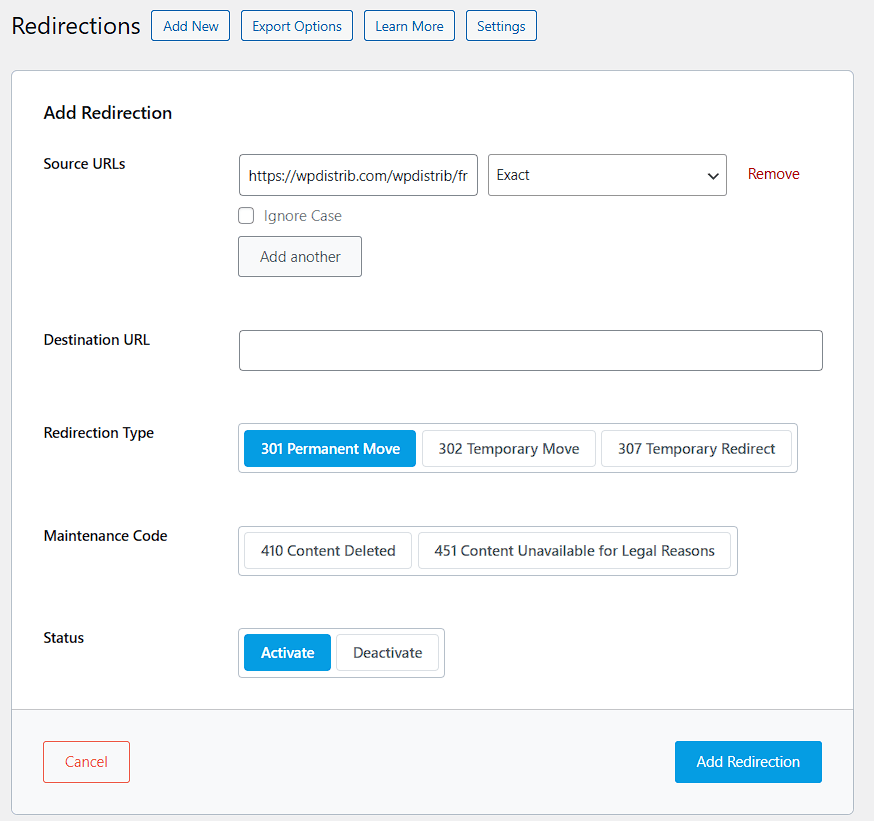
👉 Go to RankMath > Redirections.
👉 Click on Add New Redirection.
👉 Enter the URL to delete in the “Source URL” field.
👉 Under “Redirection Type, ” select 410 – Content Deleted.
👉 Save the rule. It will be active immediately.
This method is quick, simple, and ensures obsolete URLs are cleaned up properly.
Monitoring 404 Errors in Real Time with RankMath
Besides Google Search Console, RankMath includes a built-in 404 error monitor. This feature lets you spot problem URLs immediately—without waiting for Google to report them.
To use it:
👉 Go to RankMath > Dashboard and enable the 404 Monitor module if it’s not already active.
👉 Once activated, go to RankMath > 404 Monitor.
👉 You’ll see a list of recent attempts to access non-existent URLs (404 status), along with the date, IP address, and attempt count.
💡 This allows you to identify in real time if certain deleted, mistyped, or outdated pages are still being accessed. You can then handle them just like earlier: 301 redirection if relevant, or 410 deletion if not.
Why Clean Up 404s Even Without Traffic?
Even if a site gets little traffic, 404s should still be handled for several reasons:
✅ Improve crawl efficiency: Google wastes less time on useless pages.
✅ Enhance site perception: error-free sites appear more trustworthy to search engines.
✅ Prepare for growth: a clean foundation today helps SEO tomorrow.
✅ Catch technical issues: some 404s may reveal deeper structural or config errors.
🌀 RankMath and Search Console: WPDistrib’s Clean Site Duo
WPDistrib chooses to maintain a site free from broken links and orphaned pages. By combining Search Console’s detailed detection with RankMath’s smart redirections, it’s easy to keep a clean technical foundation—no complexity required. A best practice that’s useful today, and essential tomorrow.