

?

Bienvenue sur une fiche “article documentaire”
Cette page présente un contenu structuré, pensé pour t’apporter une vraie plus-value à la lecture.
Faisons le tour ensemble !

Ici s’affiche le sujet traité dans l’article.
Il joue le rôle de titre principal, clair, orienté “bénéfice utilisateur”.
➜ L’objectif est que tu saches immédiatement si cet article répond à ton besoin.

Cette zone indique qui est à l’origine de l’article.
Cela permet de contextualiser le contenu : qui parle, d’où, avec quelle expérience ?

Ici sont listées les catégories documentaires associées à l’article.
➜ Elles t’aident à comprendre dans quel contexte s’inscrit le contenu, et à retrouver d’autres ressources liées.

Ce badge indique le niveau de maturité de l’article.
➜ C’est une information précieuse pour juger de la maturité du contenu.

Cette illustration visuelle accompagne l’article.
➜ Elle est utilisée pour donner un repère rapide au lecteur, ou illustrer une tendance, une dynamique, un sujet.

Ce texte présente la plus-value de la lecture :
➜ Pourquoi cet article vaut la peine d’être lu ?
➜ Qu’est-ce que tu vas en retirer ?
C’est techniquement “l’extrait” de l’article.

Ce bouton te permet de commencer la lecture de l’article complet.
Tu as vu le contexte, les bénéfices, les thématiques…
➜ Il est temps de plonger dans le contenu

Tu connais maintenant la structure d’une fiche article documentaire sur WPDistrib !
Bonne lecture!
Tu peux relancer ce tutoriel à tout moment via le bouton “?” en bas à droite.

❓Topic covered in this documentation article:

🧐 WPDistrib Review of Admin Columns 🔵 Optional

🟡 Iteration 2 —
Tagged version

🏷 This article has been tagged: it now has all the basic technical elements to be properly interpreted by search engines.

This includes SEO metadata (title, description, excerpt), a featured image, and a consistent internal linking structure.

📌 This step is not yet a complete SEO optimization, but it allows the article to be shared properly on social media.
Thanks to its image, title, and excerpt, it’s ready to circulate in a content distribution logic.

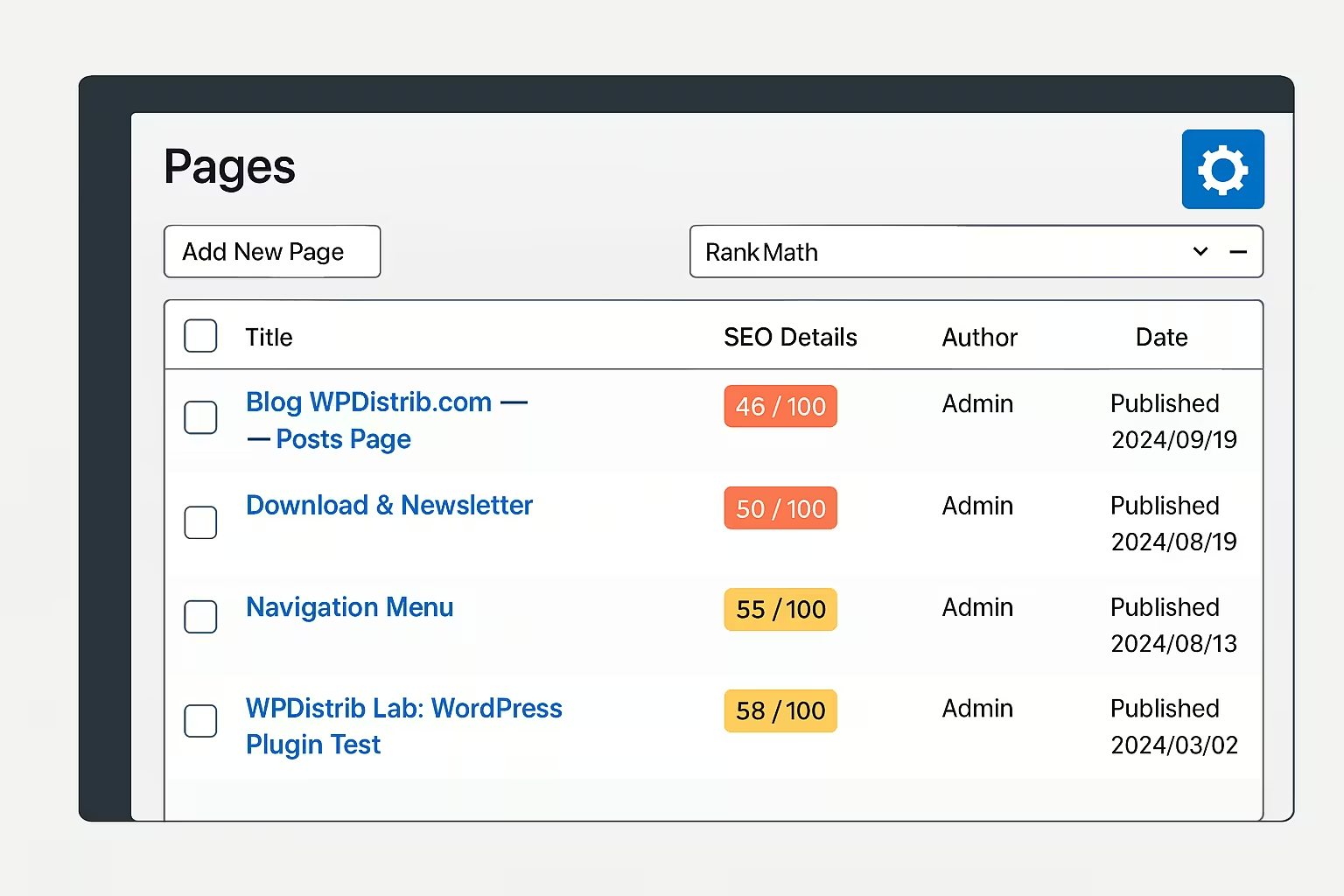
WordPress admin interface showing Admin Columns settings, from the WPDistrib Review of Admin Columns article.

Admin Columns lets you customize the column layout in WordPress content lists. An optional but powerful plugin, especially useful with RankMath or Internal Link Juicer.

Managing content in WordPress can quickly become challenging as the list of posts or pages grows.

By default, the interface displays limited columns, often hard to read and rarely adapted to the nature of the project.

Admin Columns gives you control over this layout by allowing you to customize which columns are visible, their order, and their width.

A simple but powerful plugin, useful for visually structuring your content based on your own preferences.

Improve the readability of post and page lists

WordPress offers very few options to display the data that actually matters in the admin interface. Post, page, or custom content lists always show the same default columns: title, author, categories, date

When you install plugins like RankMath or Internal Link Juicer, additional data could be shown — but it’s often inaccessible without advanced configuration.

Admin Columns solves this issue by adding a small gear icon at the top of each content list. Clicking it opens an intuitive settings panel where you can select which columns to display, in what order and format.

Select columns based on your priorities

One of the main strengths of Admin Columns is its flexibility. You can add or remove columns as needed:

Post ID

Slug

Last modified date

Custom fields (ACF)

Categories, tags, or any native field

The plugin also detects fields provided by other compatible plugins. For instance:

🚀 SEO Details if RankMath is active

🚀 Automatic anchors if Internal Link Juicer is installed

These columns then become easily accessible and configurable in just a few clicks, saving time when analyzing content.

Adjust column width for better clarity

Admin Columns also offers fine-grained control over column widths, either in pixels or percentages. This prevents overflow and improves readability.

💡 Example of a useful setup:

  • ID: 40px
  • Title: 150px
  • Slug: 120px
  • SEO Details (RankMath) : 150px
  • Anchors (Internal Link Juicer) : 150px
  • Author: 40px
  • Categories: 15%
  • Date: auto

👉 These settings can be adapted to your screen size or workflow to provide a clear and structured view of your content.

Display SEO and custom data from other plugins

Admin Columns becomes especially useful when working with advanced plugins like:

🔎 RankMath

➡ Direct display of SEO titles, meta descriptions, and overall scores.

🔗 Internal Link Juicer

➡ Instant visualization of automatic anchors set for each post.

Custom fields (ACF)

➡ Easily integrate fields like client type, internal status, priority level, etc.

Each column can be reordered according to your content logic, without modifying the content itself.

Adapt the interface to your own workflow

Admin Columns is above all a personal tool: it allows for fine-tuned customization of the admin interface but doesn’t follow a universal logic.

⚠ Some users prefer seeing last modified dates first, others prioritize SEO data or authors.

👉 That’s why WPDistrib doesn’t offer a preconfigured setup for this plugin. It’s optional and must be manually configured based on each user’s preferences.

It’s particularly useful for those who want to take their admin interface to the next level in terms of visual organization.

Understand why Admin Columns is not bundled with WPDistrib

The question is valid: why isn’t this plugin bundled with WPDistrib like other useful tools?

The answer is simple: variability.

⚠ Admin Columns’ usage depends too much on personal workflow. Enabling it by default would force a display layout that might not fit every use case and would often require disabling or reconfiguring — the opposite of WPDistrib’s mission to offer a simple and ready-to-use base.

✅ However, Admin Columns integrates smoothly when added manually. It doesn’t conflict with other components of the distribution.

🌀 Admin Columns: an optional but practical tool to structure your admin view

Admin Columns isn’t essential, but it can make the WordPress admin interface much more readable for those managing a large amount of content. It’s especially helpful when used with RankMath or Internal Link Juicer. While not installed by default in WPDistrib, it can

💡 Did this article speak to you, make you think, or make you want to go further?

You might be wondering:

  • Can I create a website that reflects who I am, without relying on a closed tool?
  • Can I learn to publish, structure, and organize my content myself?
  • Am I ready to dedicate time to it?

If the answer is yes, then you’re in the right place.

Creating a useful and sustainable website does take some time — but it’s time well invested, to learn how to do things with clarity and method.

That’s exactly the goal of WPDistrib:

save time right from the start,
→ with an already optimized WordPress,
→ and free resources to learn how to use it well.


  • 👉 Want to start with an enhanced, lightweight, already optimized WordPress? I download WPDistrib
  • Prefer to learn and understand before you dive in?👉 I explore the documentation base
  • 👉 Want to go further and structure a site around a profession or a passion? I discover the method
WordPress admin interface showing Admin Columns settings, from the WPDistrib Review of Admin Columns article.
🟡 Iteration 2 —
Tagged version

🏷 This article has been tagged: it now has all the basic technical elements to be properly interpreted by search engines.

This includes SEO metadata (title, description, excerpt), a featured image, and a consistent internal linking structure.

📌 This step is not yet a complete SEO optimization, but it allows the article to be shared properly on social media.
Thanks to its image, title, and excerpt, it’s ready to circulate in a content distribution logic.

, , ,

Admin Columns lets you customize the column layout in WordPress content lists. An optional but powerful plugin, especially useful with RankMath or Internal Link Juicer.

Beginning of the article

Managing content in WordPress can quickly become challenging as the list of posts or pages grows.

By default, the interface displays limited columns, often hard to read and rarely adapted to the nature of the project.

Admin Columns gives you control over this layout by allowing you to customize which columns are visible, their order, and their width.

A simple but powerful plugin, useful for visually structuring your content based on your own preferences.

Improve the readability of post and page lists

WordPress offers very few options to display the data that actually matters in the admin interface. Post, page, or custom content lists always show the same default columns: title, author, categories, date

When you install plugins like RankMath or Internal Link Juicer, additional data could be shown — but it’s often inaccessible without advanced configuration.

Admin Columns solves this issue by adding a small gear icon at the top of each content list. Clicking it opens an intuitive settings panel where you can select which columns to display, in what order and format.

Select columns based on your priorities

One of the main strengths of Admin Columns is its flexibility. You can add or remove columns as needed:

Post ID

Slug

Last modified date

Custom fields (ACF)

Categories, tags, or any native field

The plugin also detects fields provided by other compatible plugins. For instance:

🚀 SEO Details if RankMath is active

🚀 Automatic anchors if Internal Link Juicer is installed

These columns then become easily accessible and configurable in just a few clicks, saving time when analyzing content.

Adjust column width for better clarity

Admin Columns also offers fine-grained control over column widths, either in pixels or percentages. This prevents overflow and improves readability.

💡 Example of a useful setup:

  • ID: 40px
  • Title: 150px
  • Slug: 120px
  • SEO Details (RankMath) : 150px
  • Anchors (Internal Link Juicer) : 150px
  • Author: 40px
  • Categories: 15%
  • Date: auto

👉 These settings can be adapted to your screen size or workflow to provide a clear and structured view of your content.

Display SEO and custom data from other plugins

Admin Columns becomes especially useful when working with advanced plugins like:

🔎 RankMath

➡ Direct display of SEO titles, meta descriptions, and overall scores.

🔗 Internal Link Juicer

➡ Instant visualization of automatic anchors set for each post.

Custom fields (ACF)

➡ Easily integrate fields like client type, internal status, priority level, etc.

Each column can be reordered according to your content logic, without modifying the content itself.

Adapt the interface to your own workflow

Admin Columns is above all a personal tool: it allows for fine-tuned customization of the admin interface but doesn’t follow a universal logic.

⚠ Some users prefer seeing last modified dates first, others prioritize SEO data or authors.

👉 That’s why WPDistrib doesn’t offer a preconfigured setup for this plugin. It’s optional and must be manually configured based on each user’s preferences.

It’s particularly useful for those who want to take their admin interface to the next level in terms of visual organization.

Understand why Admin Columns is not bundled with WPDistrib

The question is valid: why isn’t this plugin bundled with WPDistrib like other useful tools?

The answer is simple: variability.

⚠ Admin Columns’ usage depends too much on personal workflow. Enabling it by default would force a display layout that might not fit every use case and would often require disabling or reconfiguring — the opposite of WPDistrib’s mission to offer a simple and ready-to-use base.

✅ However, Admin Columns integrates smoothly when added manually. It doesn’t conflict with other components of the distribution.

🌀 Admin Columns: an optional but practical tool to structure your admin view

Admin Columns isn’t essential, but it can make the WordPress admin interface much more readable for those managing a large amount of content. It’s especially helpful when used with RankMath or Internal Link Juicer. While not installed by default in WPDistrib, it can

End of the article

💡 Did this article speak to you, make you think, or make you want to go further?

You might be wondering:

  • Can I create a website that reflects who I am, without relying on a closed tool?
  • Can I learn to publish, structure, and organize my content myself?
  • Am I ready to dedicate time to it?

If the answer is yes, then you’re in the right place.

Creating a useful and sustainable website does take some time — but it’s time well invested, to learn how to do things with clarity and method.

That’s exactly the goal of WPDistrib:

save time right from the start,
→ with an already optimized WordPress,
→ and free resources to learn how to use it well.


  • 👉 Want to start with an enhanced, lightweight, already optimized WordPress? I download WPDistrib
  • Prefer to learn and understand before you dive in?👉 I explore the documentation base
  • 👉 Want to go further and structure a site around a profession or a passion? I discover the method