

🛠️ Master WordPress Distribution Setup: 5 Steps to Install WPDistrib
Sommaire
1️⃣ Kickstart Your WordPress Journey: Why Choose WPDistrib for Your Site?
2️⃣ Importance of Choosing the Right Tools
Selecting the right WordPress distribution setup is vital for ensuring optimal control, functionality, and scalability of your website.
WPDistrib stands out by offering unique advantages that enhance your site management and performance:
🌐 Total Control Over Hosting
With WPDistrib, you maintain complete control over your website’s hosting environment. Unlike other platforms that may require specific hosting arrangements, WPDistrib allows you to host your site wherever you choose, ensuring you never have to rely on third parties to manage your data.
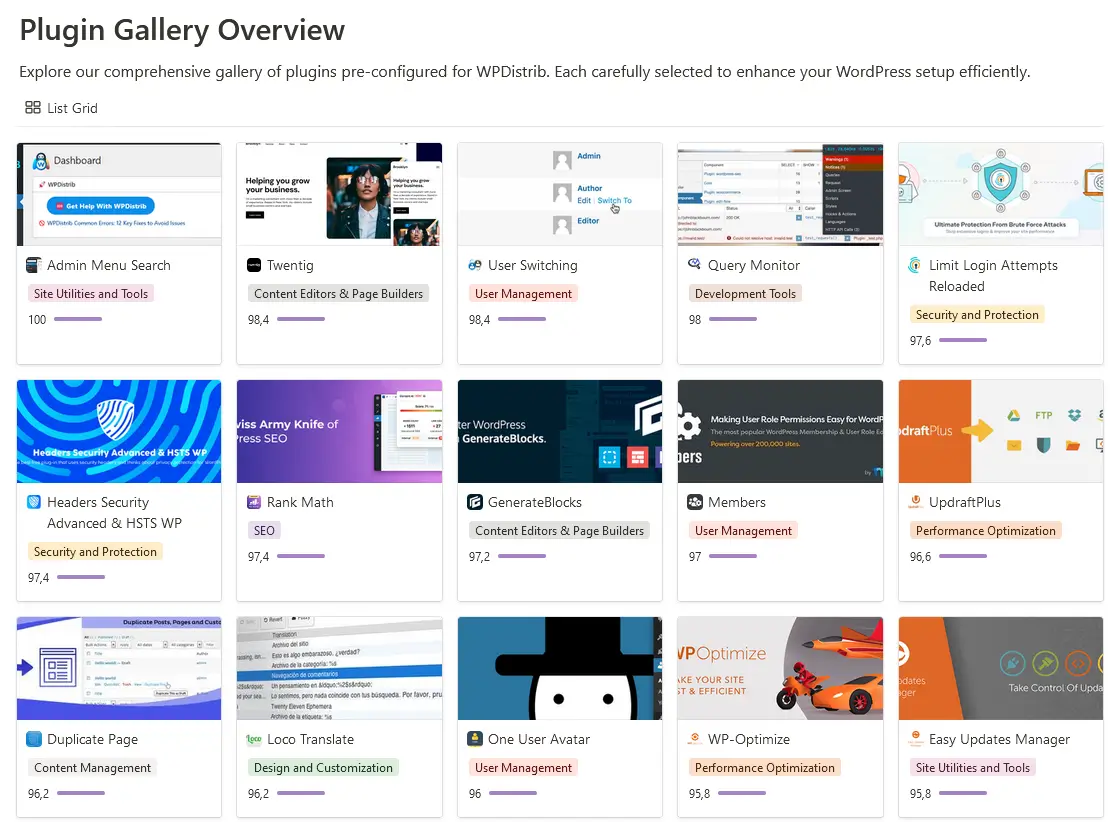
📦 Pre-Installed Essential Plugins
WPDistrib eliminates the guesswork in plugin selection by including a curated list of essential plugins that are perfect for any web project.
This balanced setup means you have just enough functionality without the bloat, ensuring a streamlined experience.
Discover the full list in our Notion tool: “WordPress Plugin Stack.”
The WPDistrib WordPress plugin stack isn’t just a random assortment of tools; it’s a thoughtfully assembled collection designed to enhance every aspect of your WordPress site.
From speeding up your website with advanced caching techniques to bolstering security with top-tier protective measures, this plugin stack covers all bases.
📈 Optimized for Performance
Starting with WPDistrib means setting your site on the path to exceptional performance.
This solid foundation is not only crucial for user experience but also enhances your site’s potential to rank well on Google SERPs.
3️⃣ Easy WordPress Distribution Setup: 5 Simple Steps to Install WPDistrib
1. Access WPDistrib Homepage
Visit the WPDistrib website and navigate to the ‘Download‘ section to start the process.
2. Download and Prepare Installation Files
After downloading, unzip the files and prepare them for installation.
Don’t forget to review the ‘Sale Terms & Conditions‘ carefully during this process.
3. Set Up WordPress on Tastewp.com
Use Tastewp.com to quickly set up a temporary WordPress site.
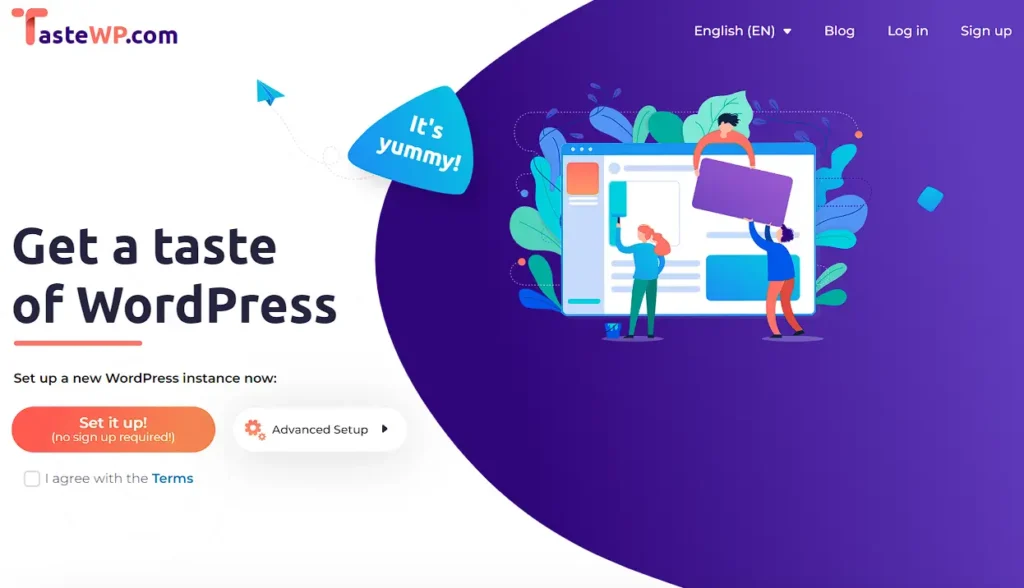
This platform is ideal for testing and ensures that you can experiment without long-term commitments.
4. Install and Activate Updraf Plus plugin
Specifically, install the UpdraftPlus plugin to handle backups and restore the files you’ve prepared.
Upload your WPDistrib backup via UpdraftPlus and perform the necessary replacements in your WordPress database.
5. Finalize Setup and Configuration
This critical step will fully integrate all the unique features and settings of WPDistrib into your WordPress site.
Everything you need to complete this process is thoroughly documented in our Notion tool, “Starter Pack” .
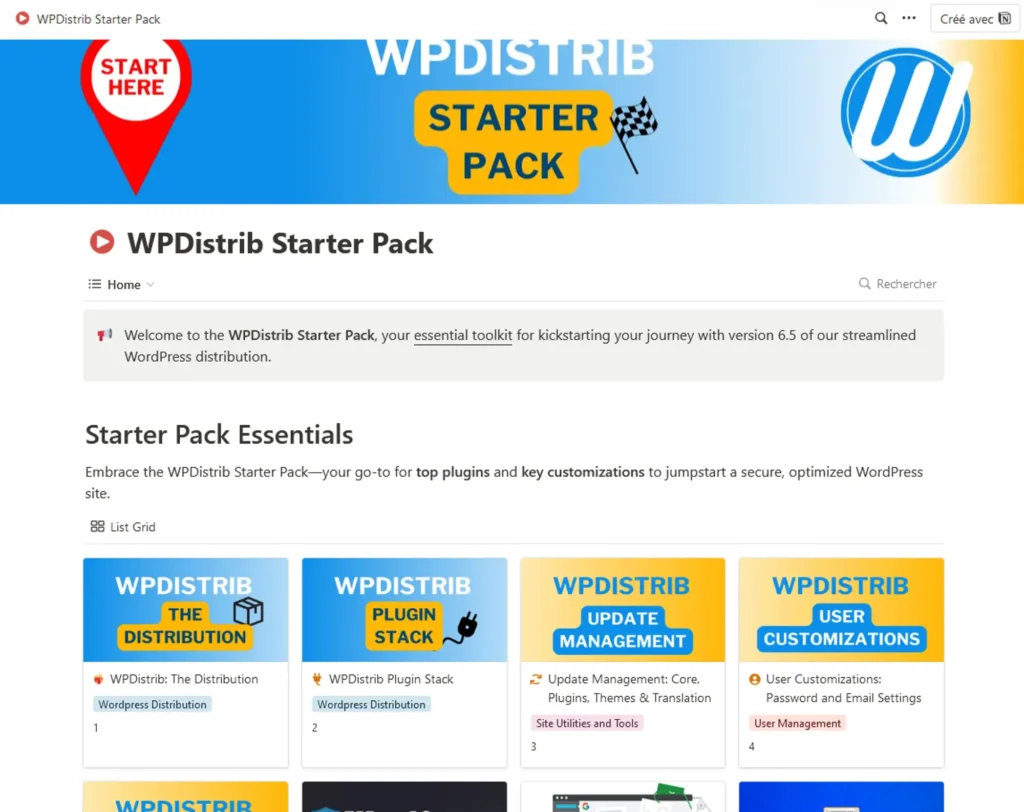
This comprehensive guide includes 10 detailed steps to ensure a perfect installation of WPDistrib, tailored with your confidential data such as emails, passwords, and third-party accounts, ensuring a seamless and secure setup tailored specifically to your needs.
To access your new site, use the following URLs:
- Primary Login URL: https://yourdomain.com/login
- Alternate Login URL (if the primary does not work): https://yourdomain.com/wp-login.php
Username: admin
Password: admin
Make sure to replace the default username and password with your secure credentials after logging in to protect your site from unauthorized access.
4️⃣ Maximize Your WordPress Potential: Watch Our WPDistrib Setup Tutorial Today!
Now that you understand the ease of setting up WPDistrib, why not see it in action?
We’ve prepared a detailed video tutorial that not only complements this guide but also provides visual insights and additional tips to enhance your setup process.
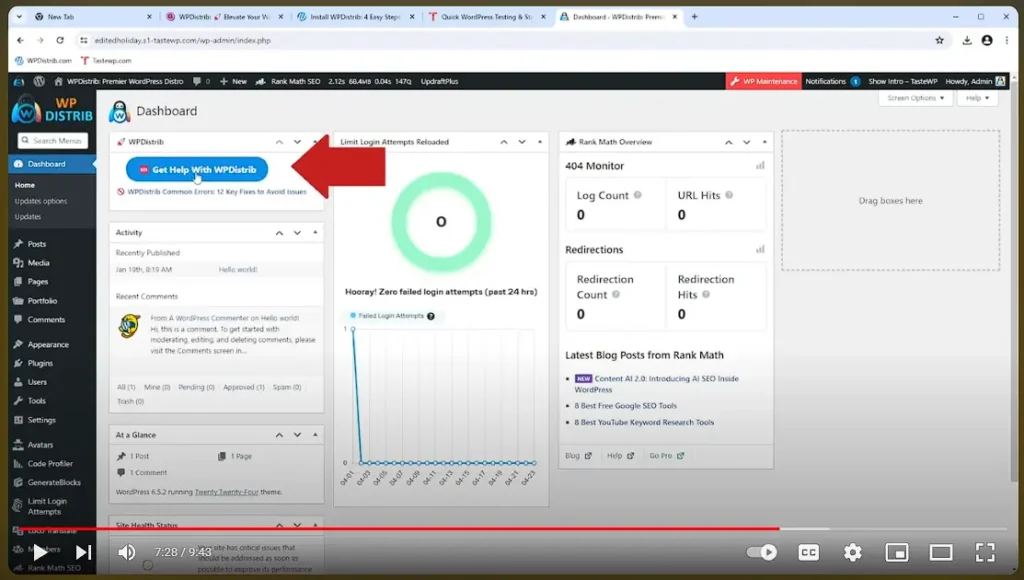
📚 Access the Complete WPDistrib Installation Guide
Join us on our YouTube channel where you’ll find a detailed video guide that explains how to download, install, and configure WPDistrib.
Dive into our exclusive installation guide on YouTube.