


A malfunction in WordPress can quickly become frustrating. But before assuming the issue comes from a plugin, it’s essential to perform a few simple checks.
Many bugs are actually related to conflicts, outdated caches, misconfigurations, or your local environment (browser, extensions, etc.).
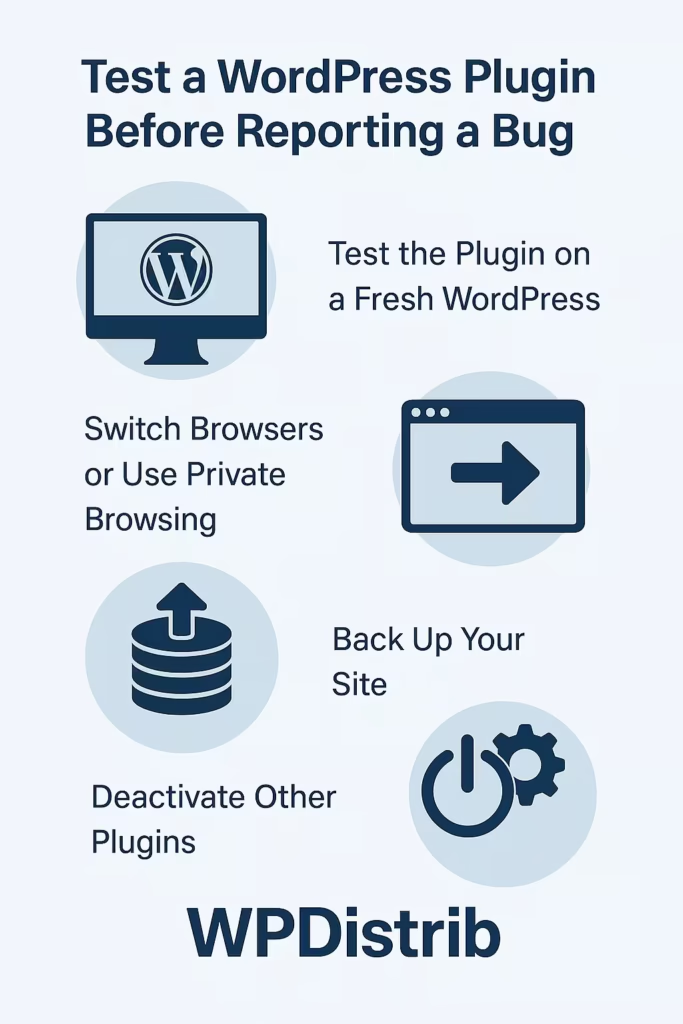
Test first, report later: a reflex that helps everyone
Before submitting a support ticket, two key points should be remembered.
- You can save time: waiting for a response often takes longer than checking a few key items yourself. If the issue is simple (cache, conflict, browser), it might be resolved in minutes.
- Developers need to prioritize: in the WordPress ecosystem, many plugins are maintained by volunteers or small teams. Unqualified reports waste valuable time. If you’ve already ruled out the most likely causes, your message will be taken far more seriously.
Start by testing the plugin alone on a fresh WordPress install
This is the first and probably most effective step.
Use a tool like TasteWP.com to spin up a clean WordPress install in one click. Install only the plugin in question and see if the bug occurs.
✅ If everything works: the issue is likely caused by a conflict, cache, or your browser.
❌ If the bug persists: it’s probably a real issue in the plugin.
This step helps to quickly rule out false leads.
Switch browsers or use incognito mode
Your browser can interfere with how plugins display or behave.
Here’s what to test:
- Open the site in a different browser (Chrome, Firefox, Edge… ).
- Enable incognito mode to disable the browser cache and extensions.
- Manually disable any browser extensions that may interfere (AdBlock, Privacy Badger… ).
If the bug disappears in this context, there’s no need to contact the plugin developer: the issue is with your browser.
Backup your site before making any changes
Before going further, it’s wise to back up your entire site:
- Files (theme, media, plugins… )
- Database
Use a plugin like UpdraftPlus to automate the process.
This step isn’t essential for diagnosis, but it allows you to safely revert changes if something goes wrong.
Apply all available updates
Many bugs disappear after a simple update.
In the WordPress admin area, check for updates:
- WordPress core
- Plugins
- Themes
Then retest the plugin. A bug related to an older version may no longer appear.
Clear caches to avoid misleading results
WordPress can show outdated data due to caching.
Clear the following:
- Browser cache
- WordPress cache (via your performance plugin)
- Server cache if you’re using tools like Cloudflare or LiteSpeed
Some bugs only appear in cached versions. This step is crucial to test the real site state.
Disable other plugins to detect conflicts
Finally, if the issue persists, disable all plugins except the one being tested.
Then test:
- If the bug is still present
- If it disappears (in which case, another plugin is causing the conflict)
You can then reactivate the other plugins one by one to isolate the culprit.
Complete a checklist before opening a ticket
Before contacting a developer, it’s best to gather the right information. WPDistrib provides a checklist to identify a WordPress bug, designed to help you:
- Tick off the checks already done
- Specify the results obtained
- Provide a clear, structured report
This helps developers quickly understand whether the bug is reproducible, critical, and where it occurs.
🌀 A stable site is often a matter of method
Testing a plugin before reporting a bug isn’t a waste of time—it’s a way to:
- Protect your site’s stability
- Speed up troubleshooting
- Help developers prioritize their actions
In the WordPress ecosystem, every user can help improve plugin quality — as long as they test methodically.