

?

Bienvenue sur une fiche “article documentaire”
Cette page présente un contenu structuré, pensé pour t’apporter une vraie plus-value à la lecture.
Faisons le tour ensemble !

Ici s’affiche le sujet traité dans l’article.
Il joue le rôle de titre principal, clair, orienté “bénéfice utilisateur”.
➜ L’objectif est que tu saches immédiatement si cet article répond à ton besoin.

Cette zone indique qui est à l’origine de l’article.
Cela permet de contextualiser le contenu : qui parle, d’où, avec quelle expérience ?

Ici sont listées les catégories documentaires associées à l’article.
➜ Elles t’aident à comprendre dans quel contexte s’inscrit le contenu, et à retrouver d’autres ressources liées.

Ce badge indique le niveau de maturité de l’article.
➜ C’est une information précieuse pour juger de la maturité du contenu.

Cette illustration visuelle accompagne l’article.
➜ Elle est utilisée pour donner un repère rapide au lecteur, ou illustrer une tendance, une dynamique, un sujet.

Ce texte présente la plus-value de la lecture :
➜ Pourquoi cet article vaut la peine d’être lu ?
➜ Qu’est-ce que tu vas en retirer ?
C’est techniquement “l’extrait” de l’article.

Ce bouton te permet de commencer la lecture de l’article complet.
Tu as vu le contexte, les bénéfices, les thématiques…
➜ Il est temps de plonger dans le contenu

Tu connais maintenant la structure d’une fiche article documentaire sur WPDistrib !
Bonne lecture!
Tu peux relancer ce tutoriel à tout moment via le bouton “?” en bas à droite.

❓Topic covered in this documentation article:

🧐 WPDistrib Review of Members 🔵 Optional

🟡 Iteration 2 —
Tagged version

🏷 This article has been tagged: it now has all the basic technical elements to be properly interpreted by search engines.

This includes SEO metadata (title, description, excerpt), a featured image, and a consistent internal linking structure.

📌 This step is not yet a complete SEO optimization, but it allows the article to be shared properly on social media.
Thanks to its image, title, and excerpt, it’s ready to circulate in a content distribution logic.

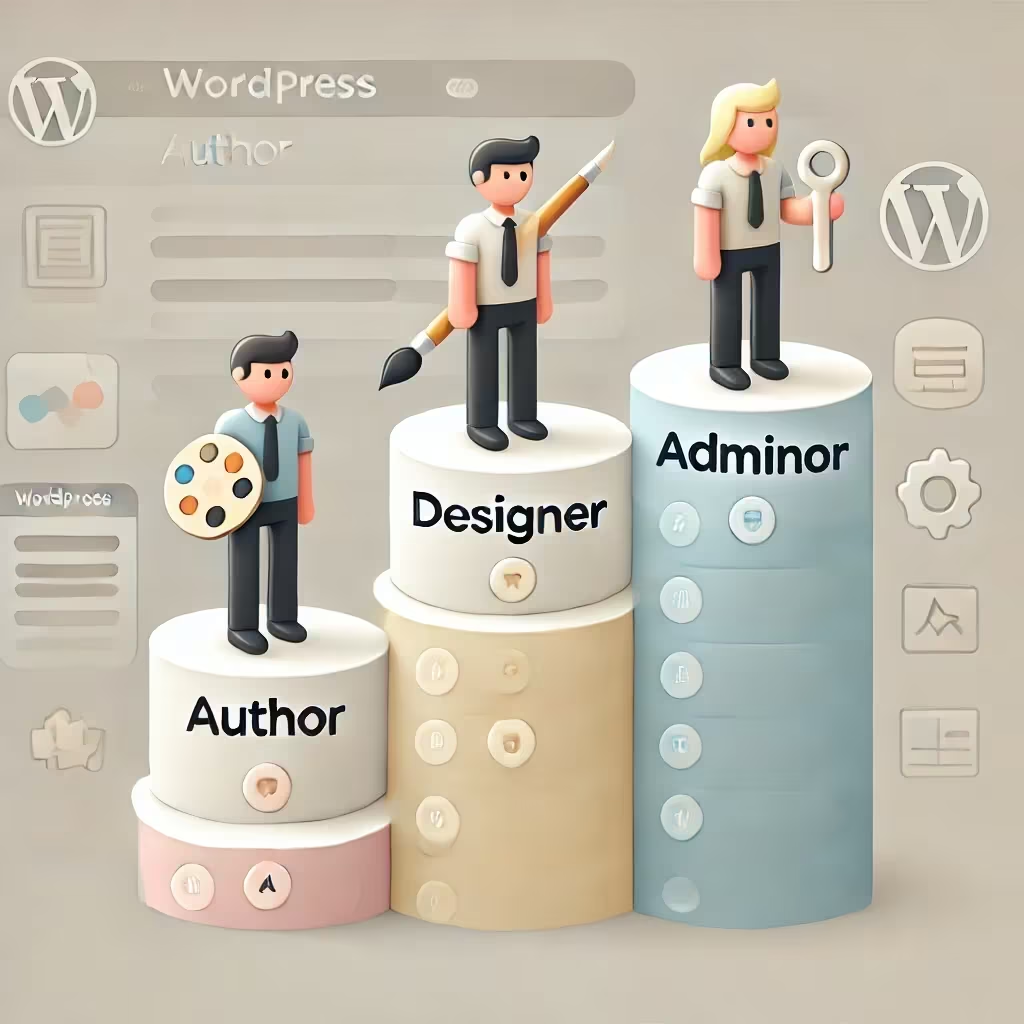
WPDistrib review of Members plugin showing WordPress roles: Author, Admin 🛡️🔧, and Administrator 🔑🛠️ on a hierarchical diagram.

WPDistrib recommends Members as an optional plugin to create intermediate roles and limit access to sensitive WordPress admin areas.

Fine-tuning user roles is a key factor in securing and organizing a WordPress website’s administration.

WPDistrib reviewed Members, a popular plugin that allows you to create custom profiles and precisely adjust each user’s access rights.


Create Intermediate Roles to Limit Access to Sensitive WordPress Areas

By default, WordPress offers standard roles such as Administrator, Editor, or Author. However, these profiles may prove either too broad or too limited depending on the team or project.

With Members, you can create “intermediate” roles positioned between a simple contributor and a full administrator. For instance, for a site designer, it may be wise to allow access only to theme customization or content management while restricting access to critical settings such as plugin or user management.

Create an “advanced editor” role: suited for users who manage structure without altering global settings.

Restrict access to sensitive admin areas: block access to pages like “Plugins” or “General Settings” for certain technical profiles.

Strengthen security by compartmentalizing access: prevent technical users from unintentionally having full control of the site.

💡 This strategy is ideal for multidisciplinary teams where several user types collaborate on the same WordPress site.


Tailor the WordPress Admin Interface Based on User Roles

One of the strengths of Members is the ability to customize the admin interface according to the assigned role. Once permissions are set, each user will only see the relevant sections in the WordPress back office.

Simplify the interface for non-technical profiles: a contributor will only see menus related to content creation (posts, media, etc.).

Provide a streamlined interface for designers: for example, hide global admin options while granting access to the customizer or menus.

Reduce human error risks: limiting access to sensitive settings helps prevent accidental misconfigurations.

💡 This approach enhances site security while making the admin area more intuitive for every user.


Decide on Members Based on Your Project’s Specific Needs

The Members plugin is not essential in every context but proves to be strategic in several specific situations.

🚀 Web agencies: deliver sites to clients with a streamlined and secure interface.

🚀 Editorial teams: clearly separate roles to avoid unwanted access to technical settings.

🚀 Community or training websites: assign roles suited to each user type (students, moderators, instructors, etc.).

🚀 Multisite projects: simplify the management of complex structures with different teams on each sub-site.

👉 However, for a site managed by a single administrator or a small technical team, the added value of Members may be more limited.


Anticipate the Limits of Members with WPDistrib

Despite its benefits, Members presents some limitations to consider before integrating it into a WPDistrib project.

Risk of incompatibility with certain plugins: some tools rely on native WordPress roles and may not fully support overly customized configurations.

Heavier interface: for simple projects, advanced role management can add unnecessary complexity to the user experience.

More complex maintenance: during site migrations or redesigns, highly specific roles may require additional adjustments.

💡 WPDistrib prioritizes a lightweight and high-performance core by default, which is why this type of plugin is offered as an option.


Combine Members and User Switching for Efficient Multi-Profile Management

Historically, WPDistrib often recommended the Members + User Switching duo to streamline user account management. User Switching allows you to switch between user profiles with a single click without logging out.

Quickly test each role’s interface: check what an Author, Editor, or Designer will see before giving them access to the site.

Speed up the configuration phase: avoid wasting time juggling multiple accounts.

Optimize multi-profile management: very useful for agencies or administrators managing complex projects who need to validate several levels of access.

💡 This combination remains relevant for websites where several types of users interact with the admin interface.


🌀 Members: The Plugin Recommended by WPDistrib for Managing Intermediate Admin Roles

Members is no longer natively integrated into WPDistrib but remains highly recommended for projects requiring advanced user role management.

➡ For simple projects, the WPDistrib environment works efficiently without Members.

➡ For more complex or team-based projects, Members, with or without User Switching, remains a reliable and quick-to-deploy solution.

WPDistrib therefore positions Members as an optional plugin, ideal for websites that need intermediate roles secured between the contributor and administrator levels.

💡 Did this article speak to you, make you think, or make you want to go further?

You might be wondering:

  • Can I create a website that reflects who I am, without relying on a closed tool?
  • Can I learn to publish, structure, and organize my content myself?
  • Am I ready to dedicate time to it?

If the answer is yes, then you’re in the right place.

Creating a useful and sustainable website does take some time — but it’s time well invested, to learn how to do things with clarity and method.

That’s exactly the goal of WPDistrib:

save time right from the start,
→ with an already optimized WordPress,
→ and free resources to learn how to use it well.


  • 👉 Want to start with an enhanced, lightweight, already optimized WordPress? I download WPDistrib
  • Prefer to learn and understand before you dive in?👉 I explore the documentation base
  • 👉 Want to go further and structure a site around a profession or a passion? I discover the method
WPDistrib review of Members plugin showing WordPress roles: Author, Admin 🛡️🔧, and Administrator 🔑🛠️ on a hierarchical diagram.
🟡 Iteration 2 —
Tagged version

🏷 This article has been tagged: it now has all the basic technical elements to be properly interpreted by search engines.

This includes SEO metadata (title, description, excerpt), a featured image, and a consistent internal linking structure.

📌 This step is not yet a complete SEO optimization, but it allows the article to be shared properly on social media.
Thanks to its image, title, and excerpt, it’s ready to circulate in a content distribution logic.

, , , ,

WPDistrib recommends Members as an optional plugin to create intermediate roles and limit access to sensitive WordPress admin areas.

Beginning of the article

Fine-tuning user roles is a key factor in securing and organizing a WordPress website’s administration.

WPDistrib reviewed Members, a popular plugin that allows you to create custom profiles and precisely adjust each user’s access rights.


Create Intermediate Roles to Limit Access to Sensitive WordPress Areas

By default, WordPress offers standard roles such as Administrator, Editor, or Author. However, these profiles may prove either too broad or too limited depending on the team or project.

With Members, you can create “intermediate” roles positioned between a simple contributor and a full administrator. For instance, for a site designer, it may be wise to allow access only to theme customization or content management while restricting access to critical settings such as plugin or user management.

Create an “advanced editor” role: suited for users who manage structure without altering global settings.

Restrict access to sensitive admin areas: block access to pages like “Plugins” or “General Settings” for certain technical profiles.

Strengthen security by compartmentalizing access: prevent technical users from unintentionally having full control of the site.

💡 This strategy is ideal for multidisciplinary teams where several user types collaborate on the same WordPress site.


Tailor the WordPress Admin Interface Based on User Roles

One of the strengths of Members is the ability to customize the admin interface according to the assigned role. Once permissions are set, each user will only see the relevant sections in the WordPress back office.

Simplify the interface for non-technical profiles: a contributor will only see menus related to content creation (posts, media, etc.).

Provide a streamlined interface for designers: for example, hide global admin options while granting access to the customizer or menus.

Reduce human error risks: limiting access to sensitive settings helps prevent accidental misconfigurations.

💡 This approach enhances site security while making the admin area more intuitive for every user.


Decide on Members Based on Your Project’s Specific Needs

The Members plugin is not essential in every context but proves to be strategic in several specific situations.

🚀 Web agencies: deliver sites to clients with a streamlined and secure interface.

🚀 Editorial teams: clearly separate roles to avoid unwanted access to technical settings.

🚀 Community or training websites: assign roles suited to each user type (students, moderators, instructors, etc.).

🚀 Multisite projects: simplify the management of complex structures with different teams on each sub-site.

👉 However, for a site managed by a single administrator or a small technical team, the added value of Members may be more limited.


Anticipate the Limits of Members with WPDistrib

Despite its benefits, Members presents some limitations to consider before integrating it into a WPDistrib project.

Risk of incompatibility with certain plugins: some tools rely on native WordPress roles and may not fully support overly customized configurations.

Heavier interface: for simple projects, advanced role management can add unnecessary complexity to the user experience.

More complex maintenance: during site migrations or redesigns, highly specific roles may require additional adjustments.

💡 WPDistrib prioritizes a lightweight and high-performance core by default, which is why this type of plugin is offered as an option.


Combine Members and User Switching for Efficient Multi-Profile Management

Historically, WPDistrib often recommended the Members + User Switching duo to streamline user account management. User Switching allows you to switch between user profiles with a single click without logging out.

Quickly test each role’s interface: check what an Author, Editor, or Designer will see before giving them access to the site.

Speed up the configuration phase: avoid wasting time juggling multiple accounts.

Optimize multi-profile management: very useful for agencies or administrators managing complex projects who need to validate several levels of access.

💡 This combination remains relevant for websites where several types of users interact with the admin interface.


🌀 Members: The Plugin Recommended by WPDistrib for Managing Intermediate Admin Roles

Members is no longer natively integrated into WPDistrib but remains highly recommended for projects requiring advanced user role management.

➡ For simple projects, the WPDistrib environment works efficiently without Members.

➡ For more complex or team-based projects, Members, with or without User Switching, remains a reliable and quick-to-deploy solution.

WPDistrib therefore positions Members as an optional plugin, ideal for websites that need intermediate roles secured between the contributor and administrator levels.

End of the article

💡 Did this article speak to you, make you think, or make you want to go further?

You might be wondering:

  • Can I create a website that reflects who I am, without relying on a closed tool?
  • Can I learn to publish, structure, and organize my content myself?
  • Am I ready to dedicate time to it?

If the answer is yes, then you’re in the right place.

Creating a useful and sustainable website does take some time — but it’s time well invested, to learn how to do things with clarity and method.

That’s exactly the goal of WPDistrib:

save time right from the start,
→ with an already optimized WordPress,
→ and free resources to learn how to use it well.


  • 👉 Want to start with an enhanced, lightweight, already optimized WordPress? I download WPDistrib
  • Prefer to learn and understand before you dive in?👉 I explore the documentation base
  • 👉 Want to go further and structure a site around a profession or a passion? I discover the method